# Write and run a flow
Write a small flow file with a launch, a tap, a wait and a check, run it on a device, read the report and run it again from one step.
A flow is a fixed list of steps that Silan runs the same way every time. It does not need an agent, and it gives you a report with a picture for each step. This guide writes a four-step flow against Apple's Settings app.
Time: about 15 minutes.
You need:
- A device with the element list: an iPhone or iPad on the Developer way, a Silan simulator, or an Android emulator. Taps by text, waits and checks need the element list, so the Simple way cannot run them.
- Silan open on your Mac.
## Steps
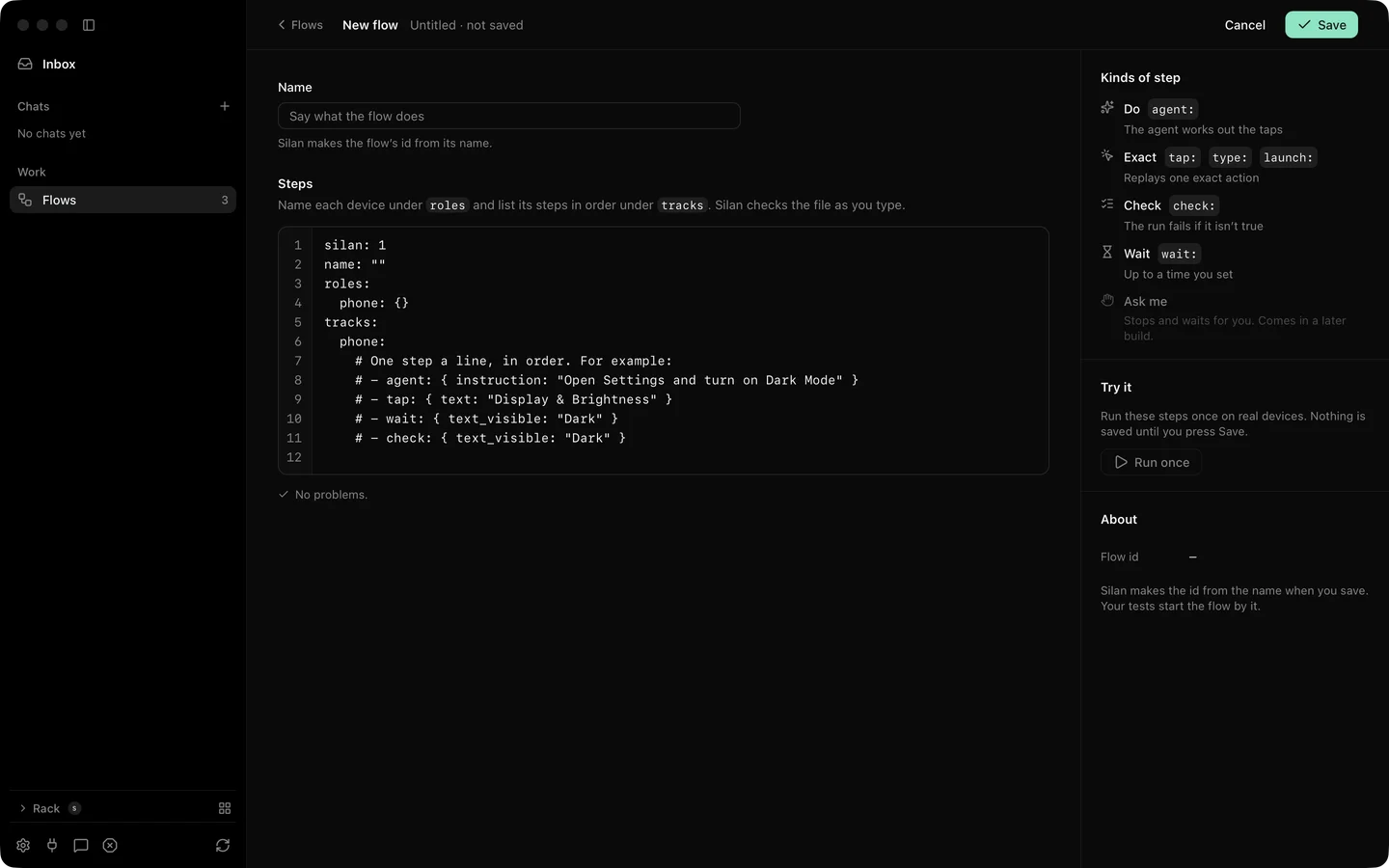
1. Click **Flows** in the sidebar, then **New flow** in the toolbar. A dialog asks you to write the steps. Click through and the editor opens with a **Name** box, line numbers and an empty file.
2. Type a name such as `Open Display settings`.
3. Paste this file into the editor:
```yaml
silan: 1
name: "Open Display settings"
roles:
phone: { platform: ios }
timeouts: { step: 30s, wait: 15s, scenario: 3m }
tracks:
phone:
- launch: { app: com.apple.Preferences, fresh: true }
- tap: { text: "Display & Brightness" }
- wait: { text_visible: "Dark" }
- check: { app_foreground: com.apple.Preferences, message: "Settings should still be in front" }
```
The file has one role, `phone`, and one track of steps for it. `launch` opens Settings from a fresh start. `tap` finds the words on the screen. `wait` holds until the word **Dark** shows, for up to 15 seconds. `check` fails the run if Settings is no longer the front app.
4. Watch the gutter. Silan checks the file a moment after each change and marks a problem by its line. Fix anything it flags before you go on.
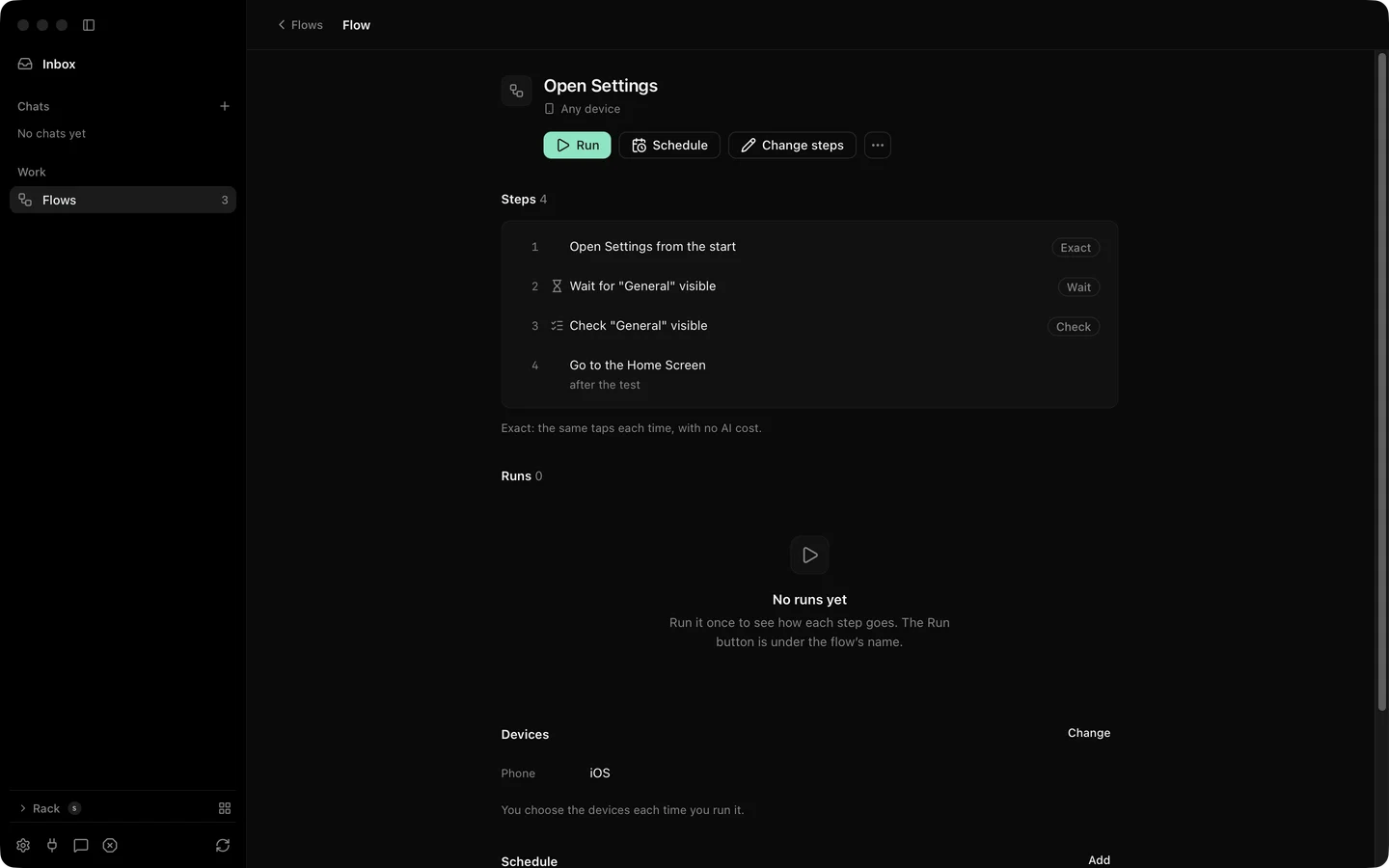
5. Press **Save**, or Command S. The flow's page opens. It shows the steps, a **Change steps** button and, later, every run of this flow.
6. Click **Run**, or press Command R. A sheet asks for a device for the `phone` role. Pick your device and confirm. If the device is busy with another run, yours waits in line.
7. Watch the live run page. It shows the device's picture, a timeline and the step list. Each step turns green as it passes. A **Stop run** button sits at the top.
8. Read the report when the run ends. It has a verdict, the timeline, the steps and any findings. Each step carries a picture taken as it ran. **Share report…** and **Download report…** give you an HTML file with the pictures inside it.
The flow editor with the steps file and the kinds of step.The flow page with Run, Schedule and the step list.
9. Make the flow fail on purpose to see **Run again from step**. Click **Change steps**, change `"Dark"` to `"Darkk"`, save and run again. The run fails at step 3 and the report says so.
10. On the failed run's page, pick **Run again from step 3**. Silan runs steps 3 and 4 only. Fix the typo and run once more to see it pass.
To take the flow out of Silan, open the flow's page and choose **Export as a file**. Silan saves `.silan.yaml`, the same text you wrote. The [JUnit guide](/guides/export-a-junit-report/) shows what to do with that file next.
## If something goes wrong
- **The tap step fails with nothing found.** The device has no element list. Check the device's **Info** tab: on the Simple way or in view-only state, flows cannot tap by text. Use the Developer way or a Silan simulator.
- **The editor flags a key.** Only keys from the scenario schema are allowed. The steps are `launch`, `tap`, `type`, `wait`, `check` and a few more. A target is `text`, `id`, `role`, `description` or `point`.
- **The wait times out.** Raise `wait` in `timeouts`, or check the exact words on the screen. Text matches are exact unless you add `match`.
- **The run waits in line.** Another run or an agent task holds the device. Wait, or stop that run from its page.
:::note[Proof]
Proved on an iPhone 11 (iOS 27) on a cable, 14 Oct 2026, by a Silan worker: run `run_5hvm668trq` passed with a report of 8 pictures, and `run_16lucagv486` failed at step 2 and was run again from that step as `run_lwovdq6ztr` and `run_qg6nbk8wwg`. Source: verify-silan feature map, test-runs and flow-editor.
:::