Features
Control a device by hand
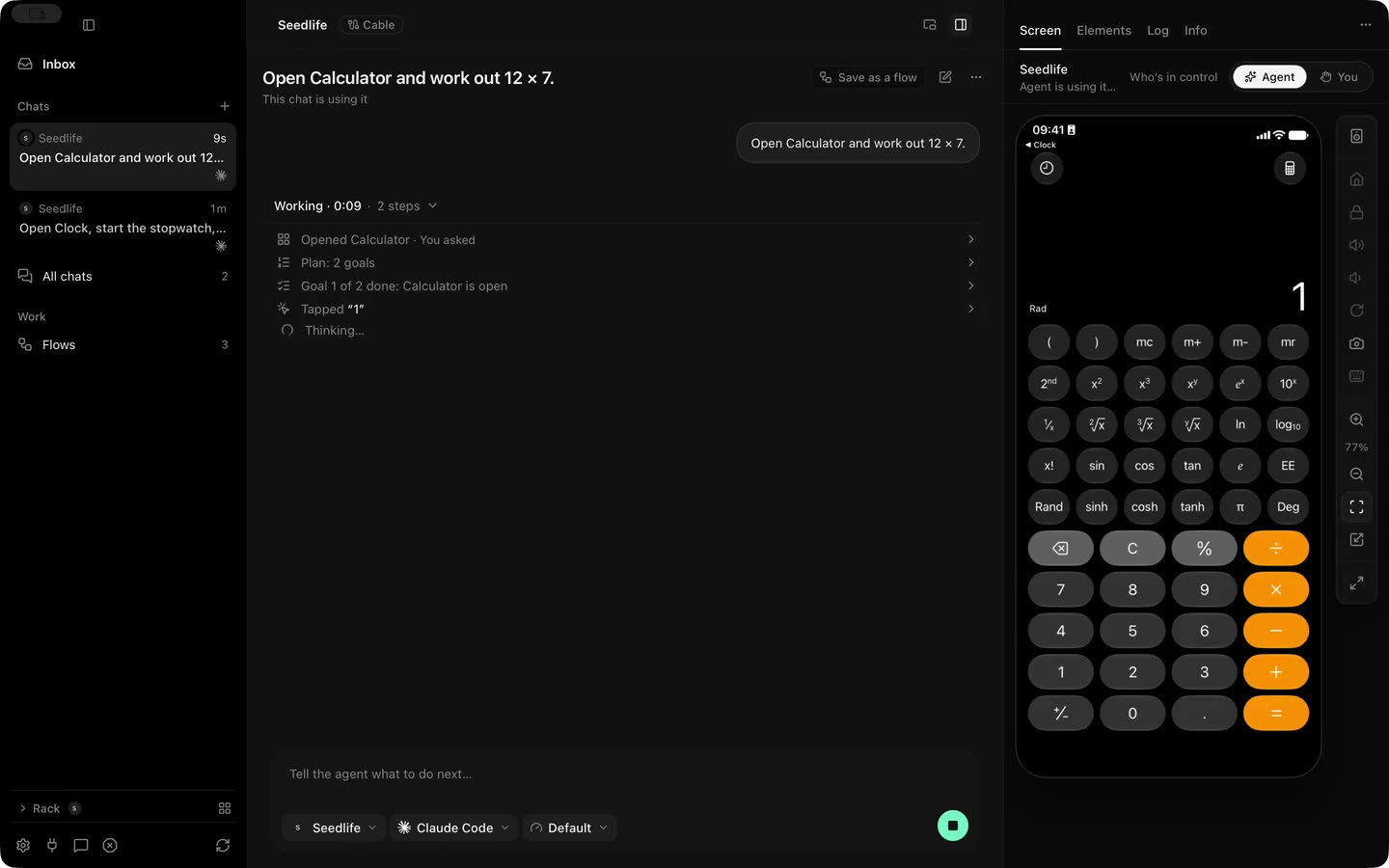
Control is the layer every other feature stands on. A person, the agent and a test run all use the same actions: launch and close an app, find something on the screen, tap or swipe it, type into a box, wait for the screen to change, and read or set the clipboard. When you take a device over you act straight on its live picture. Stop Everything freezes all of it at once.
What it does
Section titled “What it does”| Action | What it does |
|---|---|
| Apps | List installed apps, launch one with launch arguments, close it, open a link on the phone. |
| Find and wait | Find an element by its text, identifier, role or description. Wait for it to show or go. |
| Touch | Tap, long press and swipe on an element or a point. A drag on the live picture is a swipe. |
| Type | Type into a box, with clear first and submit. Typing a password with a plain type action is refused for everyone but the person. |
| Clipboard | Read and set the phone’s clipboard. |
| Take over | The phone is yours. The agent waits. Hand back passes it on with a note the agent reads. |
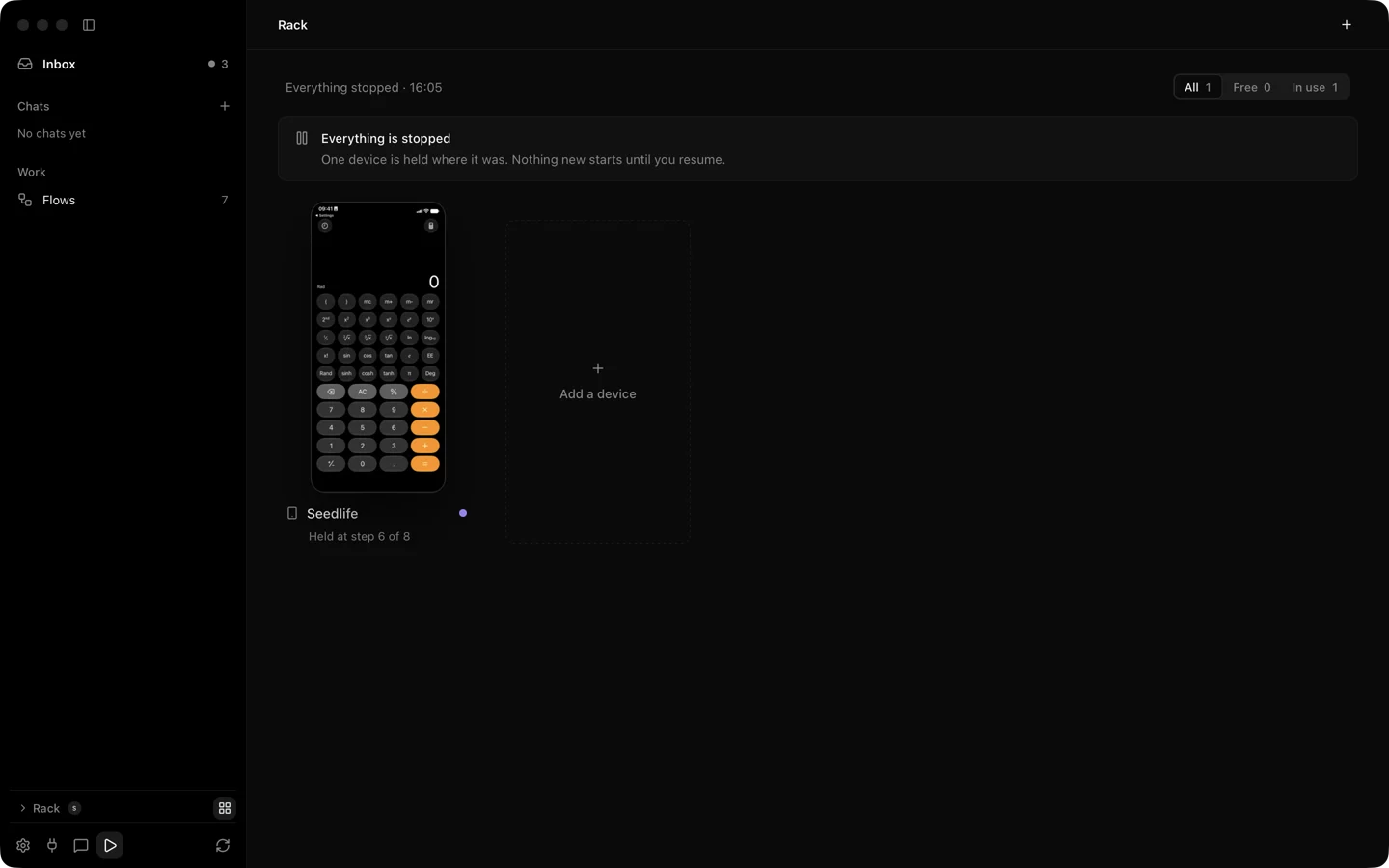
| Stop Everything | Control Option Command Period, from any app. Every action on every device stops, and every task and run is held with its phones. Resume lets them go on from where they stopped. |
Every action answers with a delivery word. checked means every step was sent and the screen showed the change. sent means it went out and nothing checked it. maybeSent means a later step failed and the phone may have acted. notSent means nothing reached the phone, for example a refused ask, a lease held by someone else or an element that moved. An agent’s failed step tells its model which of these happened.
On the Developer way, Silan opens the phone’s helper only while someone needs control and rests it after two minutes of quiet, so the phone keeps no extra process running. A locked phone makes Silan wait and the page says to unlock it. iOS asks for the passcode about once a day after a lock or a restart. If you have saved the phone’s passcode in the Vault and the phone is paired over Bluetooth, Silan answers that box itself. Holding both volume buttons on the phone turns automation off, and only you can turn it back on from the device page.
When several agents share one device, their touches go one at a time in the order they came, and an agent is refused with nothing sent when another app is in front of its own.
Step by step
Section titled “Step by step”- Open the device’s page. Set Who’s in control to You, or press Command T.
- Click the picture to tap there. Drag to swipe. Scroll with two fingers to scroll the phone.
- Use the rail beside the picture for Home, Lock, Rotate, Type with your keyboard and Screenshot.
- Press Control Option Command Period if anything must stop now. Click Resume in the app when it is safe.
- Switch back to Agent to hand the phone back. Add a note if the agent needs to know what you did.
From an agent, the same actions are the core MCP profile: launch_app, tap, long_press, swipe, type_text, press_key, dismiss_keyboard, press_button, open_url, wait_for, get_clipboard and set_clipboard. Over REST they live under actions and waits. An agent cannot call Stop Everything or Resume, those belong to the person.
Limits
Section titled “Limits”- On the Simple way there is no element list, so finds and waits work on the picture’s text. Taps go through the pointer on the phone.
- Volume buttons in the rail never work on a real iPhone or iPad.
- Take over, the rail buttons and Stop Everything pressed in the app on a real phone are proved in unit tests and offscreen pictures. The same calls were proved live over the engine’s interface. Not yet proved on a real device from the app’s buttons.
maybeSenthas not been seen on a real phone.- A phone’s clipboard belongs to its owner. Tests read it first and put it back.