Guides
Let the agent sign in with 1Password
The agent never sees a password. When a task reaches a sign-in form, the agent asks Silan to fill a saved credential, you confirm on the Mac, and Silan types it on the phone. Silan’s own Vault keeps secrets in your Mac’s keychain. This guide uses 1Password instead, through its command-line tool, so the password stays in 1Password.
What is proved: Vault fills on a real phone, with the masked chat line and the fill check. The 1Password and Bitwarden bridges are on the current release with tests. A fill that comes from 1Password on a phone, and the one-time code field, are not yet proved on a real device.
Time: about 15 minutes.
You need:
- 1Password on the Mac, unlocked.
- The 1Password command-line tool,
op. Silan looks for it at/opt/homebrew/bin/opand/usr/local/bin/op. - A device set up in Silan, and a test app with a sign-in form.
-
Install the 1Password command-line tool so it lands in one of the two paths above. Check it from Terminal:
Terminal window /opt/homebrew/bin/op --version -
Turn on the link between the app and the tool. In 1Password open Settings › Developer and tick Integrate with 1Password CLI. From now on
opasks 1Password itself for access, and 1Password shows its own prompt, with Touch ID where it is on. Silan passes no token and keeps no 1Password session. -
Check Silan found it. Silan’s health has a
secrets.1password.clicheck. Its warning line tells you the fix if the tool is missing or the integration is off. -
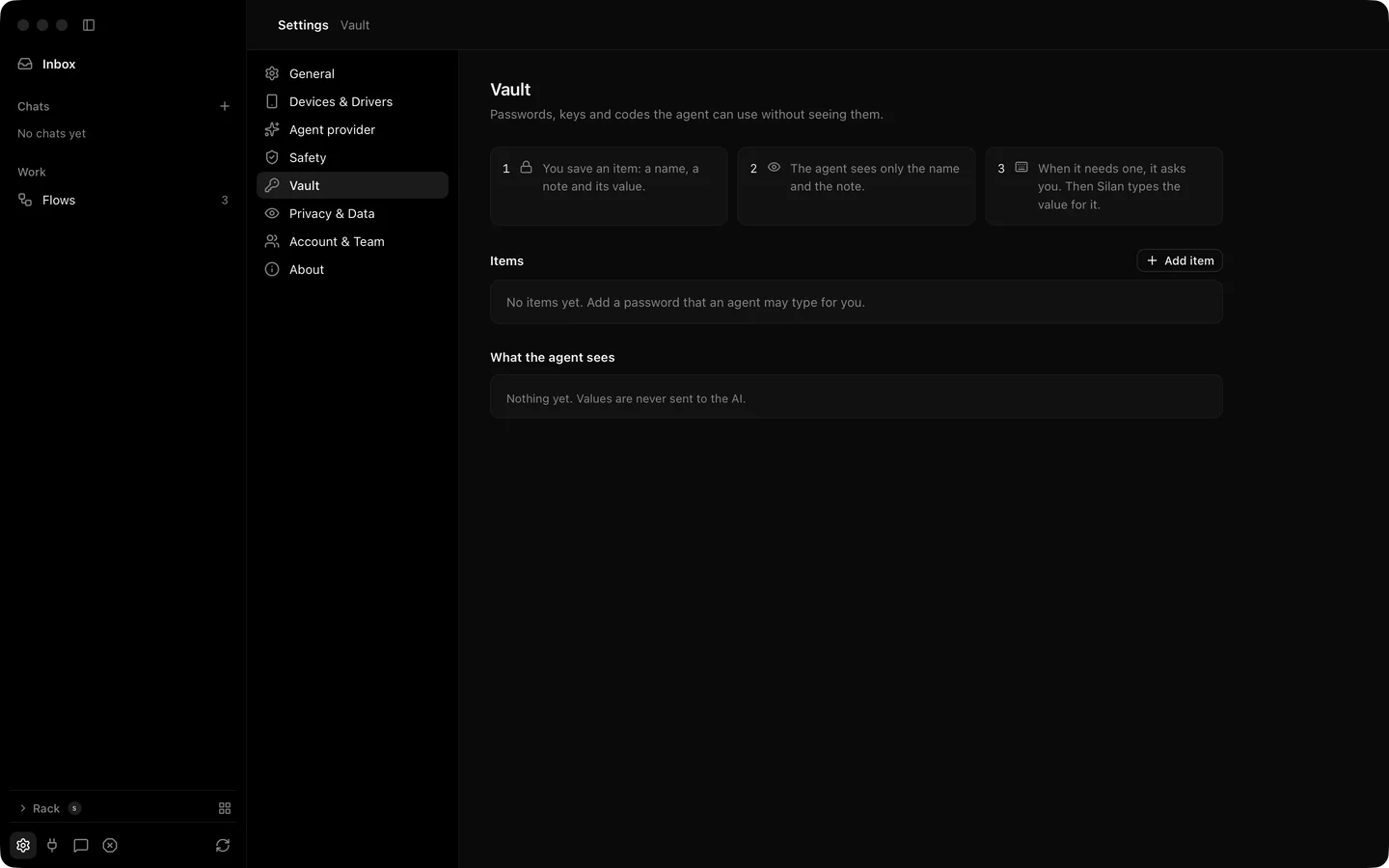
Tell Silan which item belongs to which site. Open Settings › Vault. For the site, give the name an agent will use, such as
cloudocs.example, choose 1Password as the source, and give the item as a 1Password reference,op://Vault/Item. Pick the apps the fill may go into and when Silan asks you: every time, once per chat, or not for an hour. Silan stores only the reference, never the secret. -
One-time codes are a separate opt-in. Tick the one-time code field for the site only if you want the agent to fill codes too. Silan reads them from the item’s
one-time passwordfield throughop, never from your messages. -
Start a chat on the device and give a task that reaches the sign-in form, such as
Open CloudDocs and sign in, then tell me the name on the account. -
Watch the agent reach the form. It knows the site from
list_credential_sites, taps the username box and callsfill_credentialwith the site andusername, then the password box andpassword. The agent gets backfilled, never the value. -
Answer the ask card. Silan shows Type “cloudocs.example” from your Vault? with Just this once or For this chat, and Allow or Don’t allow. Click Allow. 1Password may show its own prompt at the same moment.
-
Read the step in the chat: Typed “cloudocs.example” with the line from your Vault · value hidden. The password goes only into a password box, and the agent’s screenshots mask it.
If a site has no saved credential, the agent should call request_person_login instead. The task pauses, you sign in on the phone yourself, and the agent carries on when you hand the device back. See Safety.
Bitwarden
Section titled “Bitwarden”Bitwarden works the same way through its tool, bw, at /opt/homebrew/bin/bw or /usr/local/bin/bw. The difference is the unlock: run bw unlock, give the session key it prints to Silan, and Silan passes it to bw get for each fill. Silan never sees your master password, and locking Bitwarden in Silan drops the key. The item is named by its Bitwarden id.
If something goes wrong
Section titled “If something goes wrong”- The fill says 1Password is not installed.
opis not at one of the two paths Silan checks. Move or link it there. - 1Password shows no prompt and the fill fails. The CLI integration is off. Turn it on in Settings › Developer in 1Password.
- The fill is denied. The app in front is not on the site’s app list, or the device is not allowed for that site. Edit the site in Settings › Vault.
- Bitwarden says it is locked. Run
bw unlockagain and give Silan the new session key.