Features
Live view
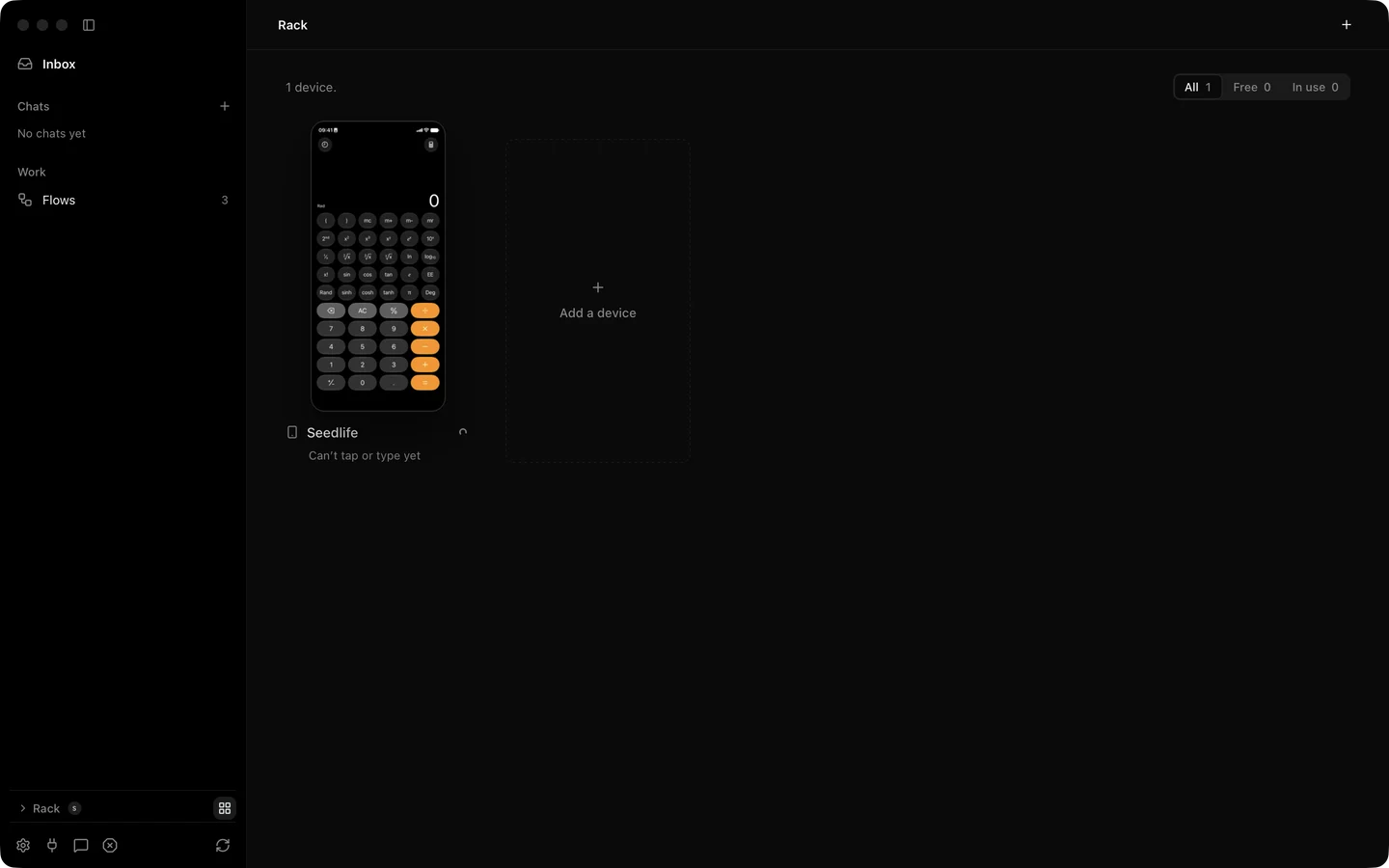
The live view is the wall of devices and the page for one device. Every tile is a moving picture of a real screen, not a snapshot. Open a tile and the picture fills the device column next to the chat, where you can zoom it, take it full screen, and turn on the phone’s sound.
What it does
Section titled “What it does”The wall shows every device Silan knows as a card with its name, its status pill and its live picture. Filters at the top narrow it to All, Free or In use, each with a count. A device that lost its cable shows its last picture with a note that says so.
One device’s page has three parts: the sidebar, the chat and the device column. The device column has four tabs. Screen is the live picture. Elements lists what is on screen when the driver can read it. Log is what Silan did. Info shows the device’s facts. Above the picture a Who’s in control switch moves between Agent and You, and Command T flips it.
| Control | What it does |
|---|---|
| Zoom, Command Plus and Command Minus | 25 % to 400 %. Command 9 fits the window, Command 0 shows actual size. |
| Full Screen Device, Shift Command F | The picture fills the screen. Sidebar and chat open as panels. Escape leaves. |
| Hide Sidebar, Control Command S | More room for the picture. |
| Hide Panel, Control Command I | Hides the chat. Float chat puts it in its own window. |
| Strip | With several devices open, a strip of small pictures sits under the main one. |
| Sound | While the Mac shows a cabled iPhone or iPad, iOS sends the phone’s sound to the Mac and the phone goes quiet. The sound button at the top of the rail mutes it on the Mac. |
When you are in control the picture is also where you act. A drag on the picture is a swipe on the phone, and a two-finger scroll on the trackpad scrolls the phone. See control a device by hand.
The picture arrives over the cable on the Simple way and over the cable or Wi-Fi on the Developer way. On a cabled iPad Air a worker measured 58 new pictures a second. On the wall each tile refreshes about 25 times a second, and the device page about 41 times a second on an iPhone 11.
Step by step
Section titled “Step by step”- Open Silan. The wall is the first page. Use the filters to find a free device.
- Click a tile. The device page opens with the live picture in the device column.
- Press Command 9 to fit the picture to the window, or zoom with Command Plus and Command Minus.
- Press Shift Command F for full screen. Press Escape to come back.
- Use the device menu at the top of the column for New chat, Full screen, Don’t use with Silan and Remove….
From an agent, the picture is a single still: screenshot returns a PNG of the screen (828 by 1792 pixels on an iPhone 11), and observe returns the screen with the element list when the driver has one. Local tools can also read a moving picture as MJPEG from GET /v1/devices/{deviceId}/stream.mjpeg, at 1 to 30 pictures a second. See screenshot, observe and the observation REST group.
Limits
Section titled “Limits”- Volume buttons in the device rail never work on a real iPhone or iPad. Lock works, and on Android it is the power button.
- The strip with a second device, the trackpad scroll feel and the unplugged tile were proved in offscreen pictures and unit tests. Not yet proved live on a real device.
- Play on the phone, no picture stops the cable picture so the phone keeps its own sound. Unit tests only. Not yet proved on a real device.
- Silan cannot keep the sound on the phone while the Mac shows the cable picture. iOS moves it. Some players pause when the sound moves.
- The Elements tab is empty on the Simple way, which has no element list.
- The MJPEG stream route is in the spec and was not part of a proof run. Not yet proved on a real device.