Features
Team phones and the relay
Team phones let a phone on one Mac be used from another. You share it with a team or keep it to yourself. A teammate sees it on their wall, takes it or joins the line, and acts on it through a sealed link that runs through a relay. The relay is a Linux program your team runs itself. Nothing on a phone’s screen passes through it in the clear.
What it does
Section titled “What it does”Sharing. Share a phone with a team and pick 1 to 3 seats, or share with just you. Teammates see it on their Macs within a second. Use takes a free seat and Join the queue waits for one. A person has 2 minutes to start, and after 15 minutes idle Silan asks Still using it? with 2 minutes to answer. A dropped link gets a 2 minute grace. When the phone changes hands Silan presses Home first. The owner can Take back with a reason, and anyone in the line can Leave the line, Hand back, Ask to hand over or be removed from the line. An AI app on a teammate’s Mac can claim a team phone with a task label and wait up to an hour, and its asks show up in the teammate’s Inbox with Send once and Don’t send.
The link. Every message is sealed end to end. The caller’s line is signed with the Mac’s Secure Enclave chip key, so the relay cannot forge it. The relay keeps only Mac ids and counts, never a screen word, an app id or a device name. The live picture goes through the relay as H.264 at 30 pictures a second and is masked while the phone is locked, while a secret is typed and while the read is stale. Activity on the phone’s Mac records the teammate’s name and Mac. In a measured run the relay added about 26 ms to the picture: local p50 61.2 ms, through the relay 87.2 ms.
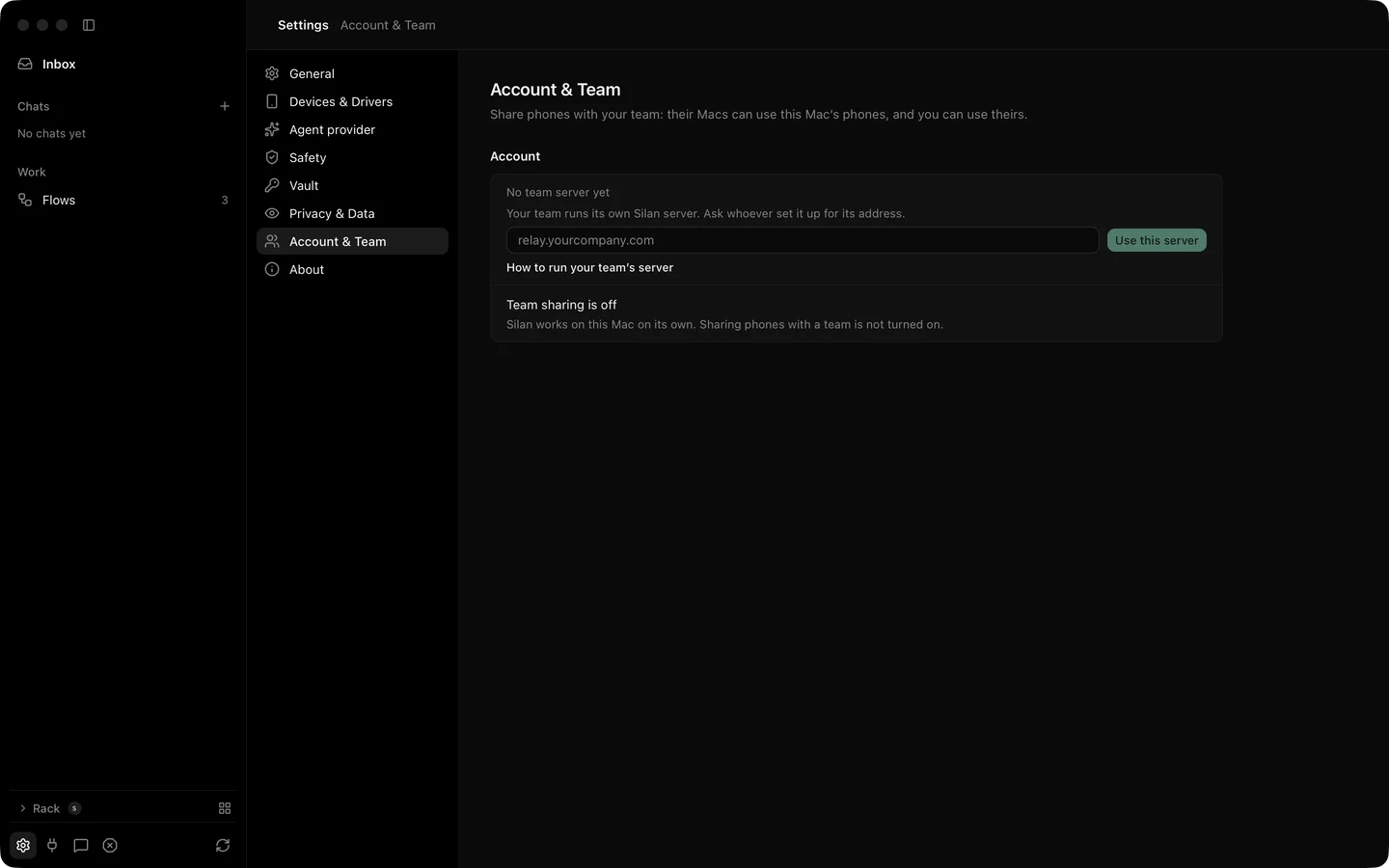
The relay. The hub ships as a Linux Docker image with a health check, optional backups, and your own OpenID Connect sign-in. There is no default server: a Mac has none until you type an address in Settings › Account & Team or open an invite link that names one. Off this Mac the address must be https or wss. Switching relays needs no restart. See self-host for the kit.
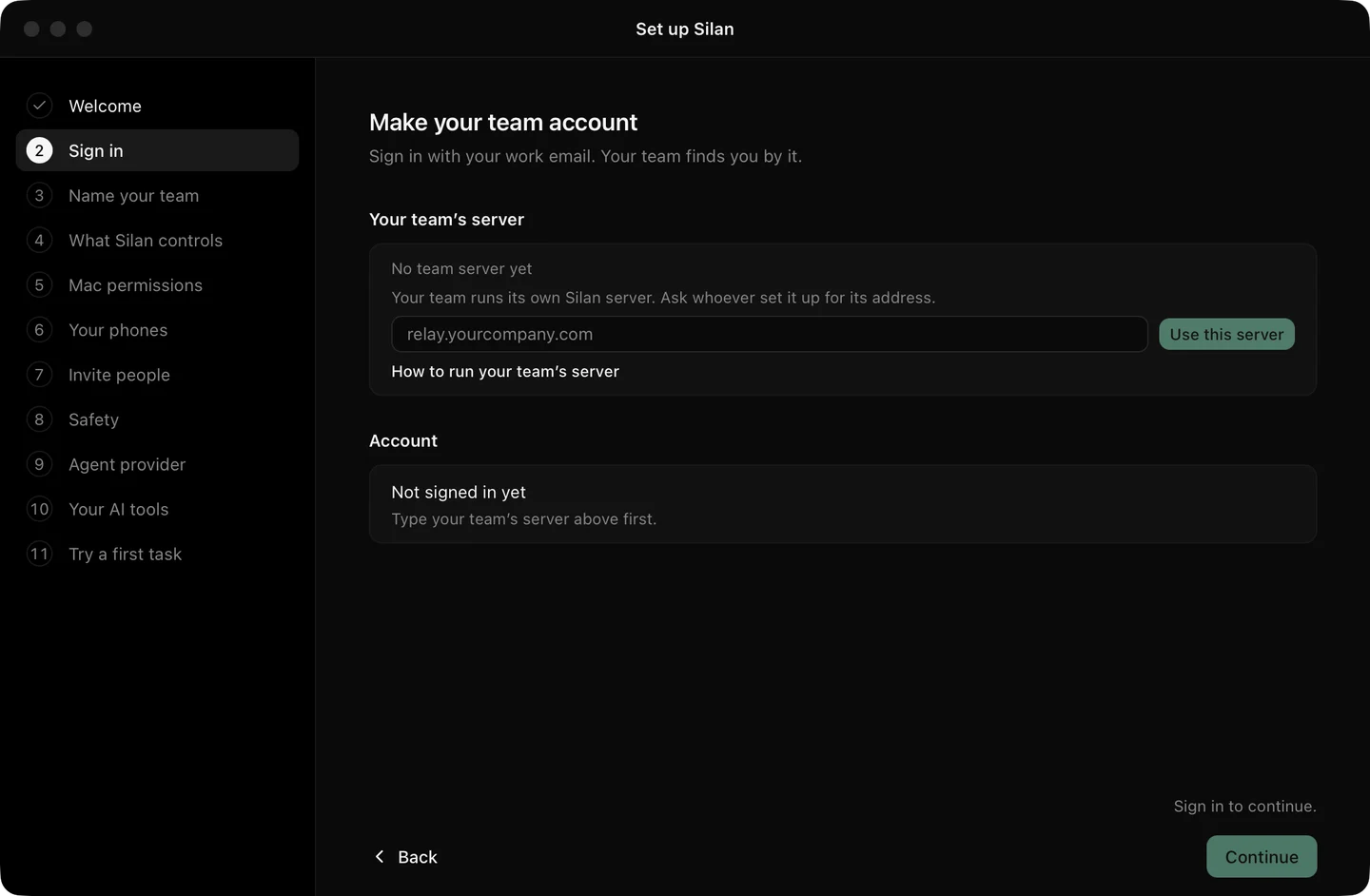
Sign in. You sign in through the browser, make a team, and invite teammates by email. An invite is a link that joins the team the moment that email signs in. Removing a member ends their reach within 2 seconds. The last admin cannot leave. A refresh token used twice signs the Mac out. If the identity provider is down, existing sign-ins keep working and new ones wait.
Booths, which give seats to an instructor and watchers, are in testing.
Step by step
Section titled “Step by step”- Open Settings › Account & Team, type your team’s relay address and click Use this server.
- Click Sign in. Finish in the browser and come back.
- Make a team, or open the invite link your admin sent.
- On a phone’s page, click Share with my team and pick the seats. Turn on Keep this Mac awake when the Mac holds phones for others.
- On the teammate’s Mac the phone shows on the wall. Click Use.
Setup also offers a Hold phones for my team way that does the same during first run. From an agent, a team phone is a device like any other: claim_devices with a task label waits for a seat. See claim-devices.
Limits
Section titled “Limits”- Team sharing and team sign-in are in testing on real phones: the proofs below ran with two accounts on one Mac, two engines and a local relay. Not yet proved across two Macs in different places.
- Booths are in testing.
- A relay on another computer must have a certificate. Plain
httpandwswork only on this Mac. - The relay runs on Linux. Silan itself runs on a Mac today, and a Linux station is coming.