Use cases
A teammate uses your phone
A team has more phones than desks, and the phone a tester needs is on someone else’s Mac. Silan shares a phone with your team through a relay your team runs. A teammate sees the phone on their own Mac, uses it live, by hand or with their agent, and waits in line when someone holds it. You keep the last word: take it back whenever you need it, and read in Activity who did what from which Mac. Every Mac-to-Mac packet is sealed end to end, so the relay routes what it cannot open.
A worked example
Section titled “A worked example”You open your iPhone’s Info panel and turn on Share with Proof team, with 2 people at once. Kai, on a Mac in another city, sees your iPhone · Free · 2 seats in their device list. Kai presses Use, gets the live picture and taps through a Calculator check by hand.
A second teammate presses Join the queue and sees their place as number 1. When Kai hands back, the phone shows its Home Screen and the teammate gets a notice: your iPhone is yours. Start within 2 minutes. After 15 minutes with no tap, Silan asks them Still using it? and, with no answer in 2 minutes, passes the phone on.
You need the phone for a release. You press Take back and type a reason. The holder’s session ends with you took your iPhone back: release testing, and your Activity shows each of their taps as Kai, from Kai's MacBook.
Kai’s Claude Code can book the phone too: claim_devices with a task name waits in the same line as the people, and the line shows Kai's Claude Code · Calculator test. When that agent wants to open an app off the allow list, the ask shows in Kai’s Inbox, and only Kai answers it, never the agent.
- Your team sets up its relay, or you get an invite to one. Each team runs its own server, and a new Mac has none until you type the address or open an invite link (Teams and self-hosted relay).
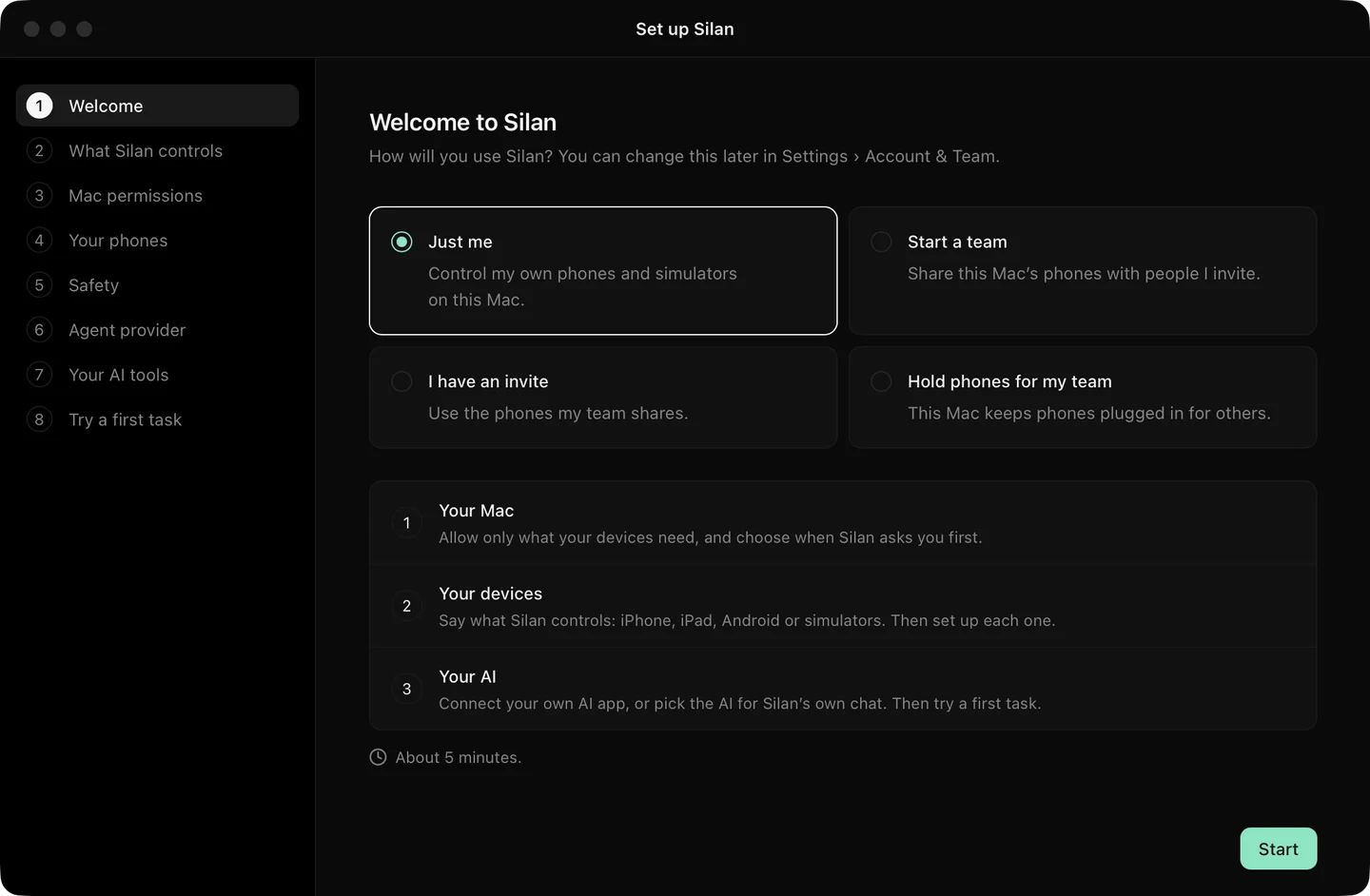
- On each Mac, Settings › Account & Team, type the server, press Use this server and sign in.
- On the Mac with the phone, open the phone’s Info panel and turn on sharing with your team. Pick how many people may use it at once, 1 to 3 (Team).
- On the teammate’s Mac, the phone shows with its Mac and team. Press Use when it is free, or Join the queue. Leave the line, Hand back and Ask to hand over are in the same panel.
- The owner, or an admin of the team, presses Take back with a reason, or Remove on a person in the line.
- Read who did what in Activity with the teammate filter (Activity).
What is supported today
Section titled “What is supported today”| What | Status |
|---|---|
| A teammate books a shared phone from another Mac, live picture and control | Supported |
| A waiting line shared by the person at the Mac, agents and teammates | Supported |
| 2 minutes to start, Still using it? after 15 minutes idle, 2 minutes of grace when a Mac drops off | Supported |
| Take back with a reason, remove from the line, ask to hand over | Supported |
| A teammate’s AI app claims the phone and its asks land in the teammate’s Inbox | Supported |
| Sealed end to end, Activity names the person and their Mac | Supported |
| Your own relay from the deploy kit, with your company’s sign-in | Supported in a test with a stand-in sign-in. Not yet proved by the owner on a second server |