Guides
Write and run a flow
A flow is a fixed list of steps that Silan runs the same way every time. It does not need an agent, and it gives you a report with a picture for each step. This guide writes a four-step flow against Apple’s Settings app.
Time: about 15 minutes.
You need:
- A device with the element list: an iPhone or iPad on the Developer way, a Silan simulator, or an Android emulator. Taps by text, waits and checks need the element list, so the Simple way cannot run them.
- Silan open on your Mac.
-
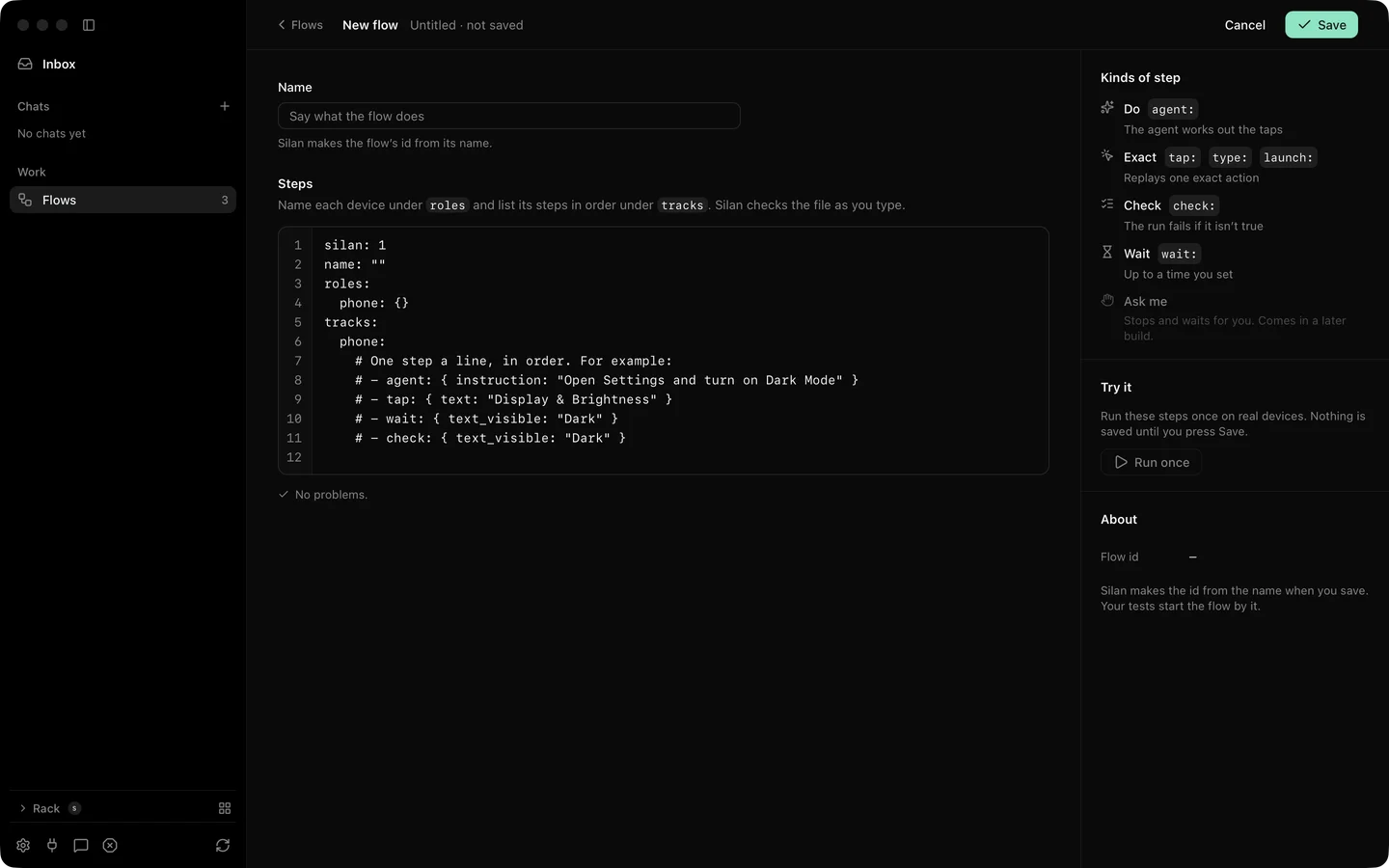
Click Flows in the sidebar, then New flow in the toolbar. A dialog asks you to write the steps. Click through and the editor opens with a Name box, line numbers and an empty file.
-
Type a name such as
Open Display settings. -
Paste this file into the editor:
silan: 1name: "Open Display settings"roles:phone: { platform: ios }timeouts: { step: 30s, wait: 15s, scenario: 3m }tracks:phone:- launch: { app: com.apple.Preferences, fresh: true }- tap: { text: "Display & Brightness" }- wait: { text_visible: "Dark" }- check: { app_foreground: com.apple.Preferences, message: "Settings should still be in front" }The file has one role,
phone, and one track of steps for it.launchopens Settings from a fresh start.tapfinds the words on the screen.waitholds until the word Dark shows, for up to 15 seconds.checkfails the run if Settings is no longer the front app. -
Watch the gutter. Silan checks the file a moment after each change and marks a problem by its line. Fix anything it flags before you go on.
-
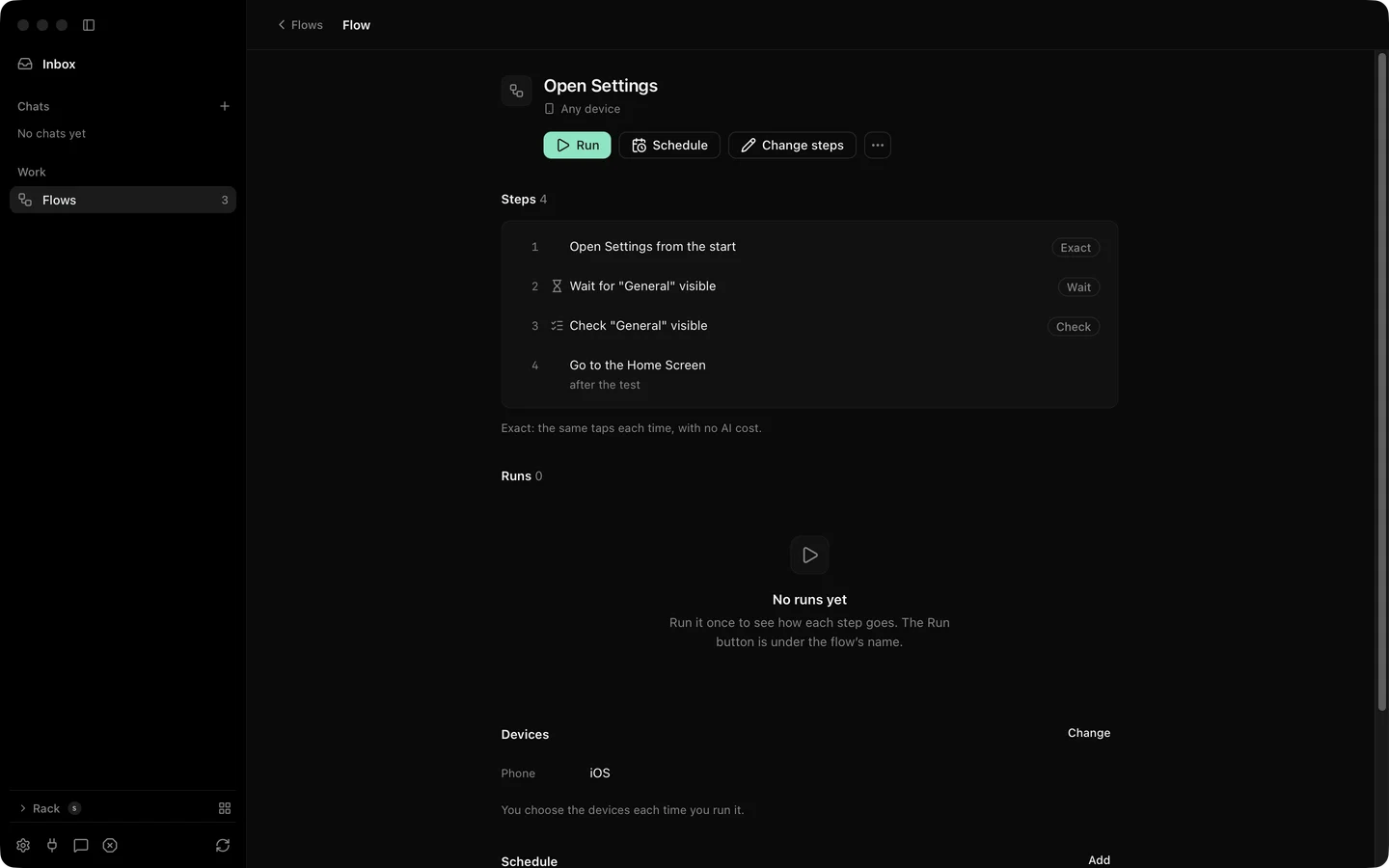
Press Save, or Command S. The flow’s page opens. It shows the steps, a Change steps button and, later, every run of this flow.
-
Click Run, or press Command R. A sheet asks for a device for the
phonerole. Pick your device and confirm. If the device is busy with another run, yours waits in line. -
Watch the live run page. It shows the device’s picture, a timeline and the step list. Each step turns green as it passes. A Stop run button sits at the top.
-
Read the report when the run ends. It has a verdict, the timeline, the steps and any findings. Each step carries a picture taken as it ran. Share report… and Download report… give you an HTML file with the pictures inside it.
- Make the flow fail on purpose to see Run again from step. Click Change steps, change
"Dark"to"Darkk", save and run again. The run fails at step 3 and the report says so. - On the failed run’s page, pick Run again from step 3. Silan runs steps 3 and 4 only. Fix the typo and run once more to see it pass.
To take the flow out of Silan, open the flow’s page and choose Export as a file. Silan saves <id>.silan.yaml, the same text you wrote. The JUnit guide shows what to do with that file next.
If something goes wrong
Section titled “If something goes wrong”- The tap step fails with nothing found. The device has no element list. Check the device’s Info tab: on the Simple way or in view-only state, flows cannot tap by text. Use the Developer way or a Silan simulator.
- The editor flags a key. Only keys from the scenario schema are allowed. The steps are
launch,tap,type,wait,checkand a few more. A target istext,id,role,descriptionorpoint. - The wait times out. Raise
waitintimeouts, or check the exact words on the screen. Text matches are exact unless you addmatch. - The run waits in line. Another run or an agent task holds the device. Wait, or stop that run from its page.