Use cases
Scheduled smoke tests
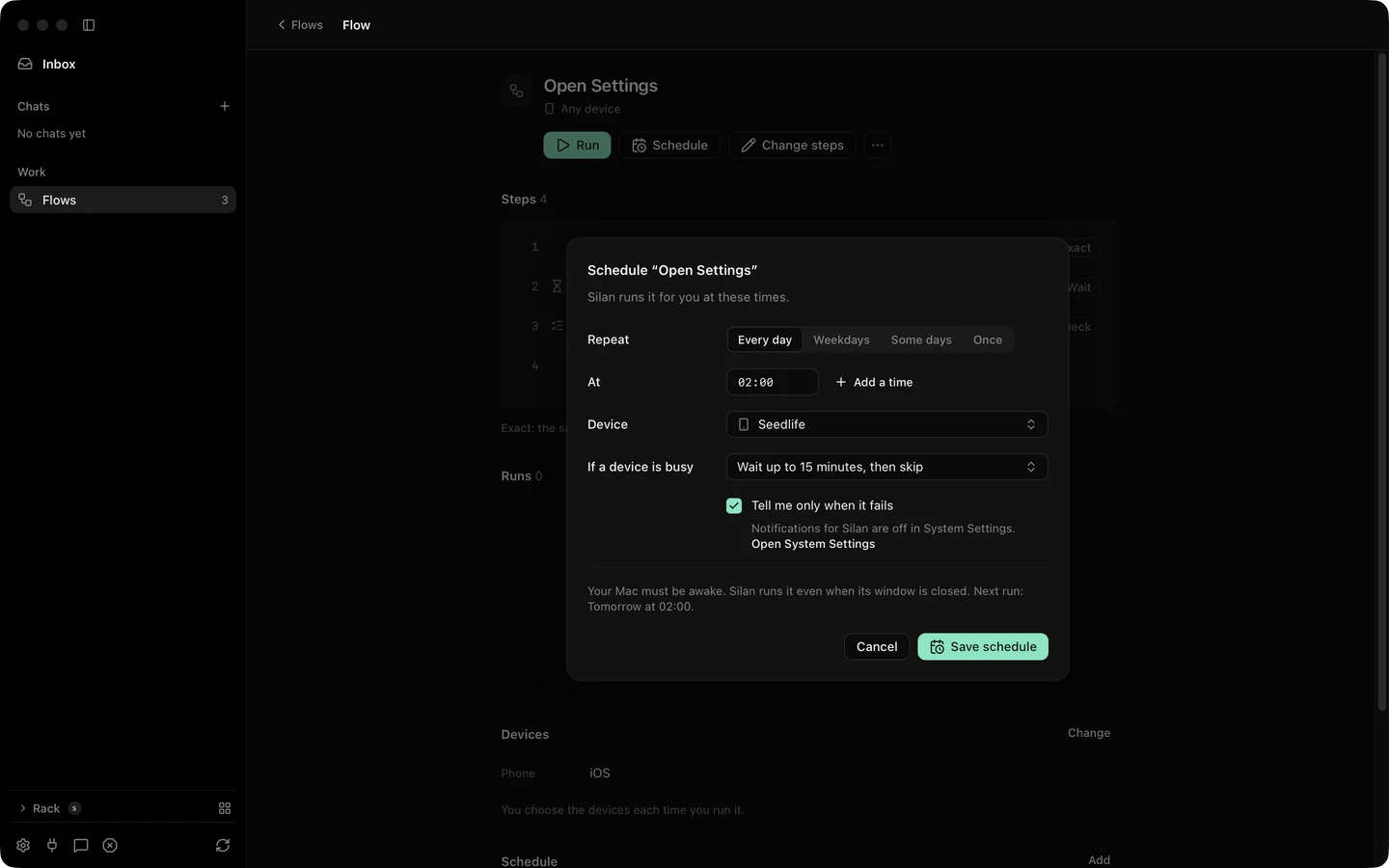
A QA team wants the same short flow to run every morning on a real phone, before anyone sits down, and wants to hear about it only when something broke. In Silan a saved flow takes a schedule: every day, weekdays, some days or once, at up to 8 times a day on the Mac’s clock, on the phones you pick. A scheduled run is a run like any other, with the same asks, the same phone holds, and Stop Everything. Tell me only when it fails is ticked by default.
A worked example
Section titled “A worked example”Your flow megamart-smoke opens MegaMart, searches for a lamp, adds it to the cart and checks the cart badge. On the flow’s page you press Schedule, pick Weekdays at 07:00 and 13:00, choose the iPhone for the flow’s one role, and set the wait for a busy phone to 30 minutes. The dialog says it back in words with the next time: Weekdays at 07:00 and 13:00 · Next: Thu at 07:00. The menu bar item lists it under what runs next.
At 07:00 the run starts as Schedule. It passes, and you hear nothing. At 13:00 a teammate is using the iPhone by hand. The run starts and shows Waiting for that person in Runs. Twelve minutes later they hand back, the run gets the phone and passes. On Friday the 07:00 run fails at step 4, and a notice tells you so with the flow’s name. You open the run, read the picture of step 4, fix the step and press Run again from step 4.
- Save the flow, as a file or by keeping a finished chat as a flow (Flows).
- On the flow’s page press Schedule. Pick the repeat, the times (
HH:mmon the 24 hour clock), a phone for each role or any free phone, and the wait for a busy phone from 0 to 240 minutes (Schedules). - Leave Tell me only when it fails ticked. Allow Silan’s notifications on the Mac if you have not.
- Read the schedule’s words and its next time on the flow’s page. The On switch pauses it without losing it.
- After a run, open it in Runs. A skipped time keeps its reason on the schedule: another run of the flow was still going, everything was stopped, the phone was not connected, or the phone was busy.
The busy rule: when another run of the same flow is still going, the time waits up to your wait and is skipped when it runs out. When the phone is busy with another run, an agent task or a person, the run starts at once and waits in the phone’s line, first come first served, for the rest of your wait. A time that came while Silan was not running is skipped, unless Silan is back within the wait or within 2 minutes.
What is supported today
Section titled “What is supported today”| What | Status |
|---|---|
| Schedules on a saved flow: repeat, up to 8 times, phones per role, wait for a busy phone, on and off | Supported |
| Tell me only when it fails | Supported |
| A scheduled run waits in a busy phone’s line | Supported |
| Skipped times keep their reason, missed times while Silan was off | Supported |
| Stop Everything holds a scheduled run until Resume | Supported |
| A full scheduled flow with taps on a real phone | In testing |
| Let the phone sleep between scheduled runs | In testing |