Features
Test runs and reports
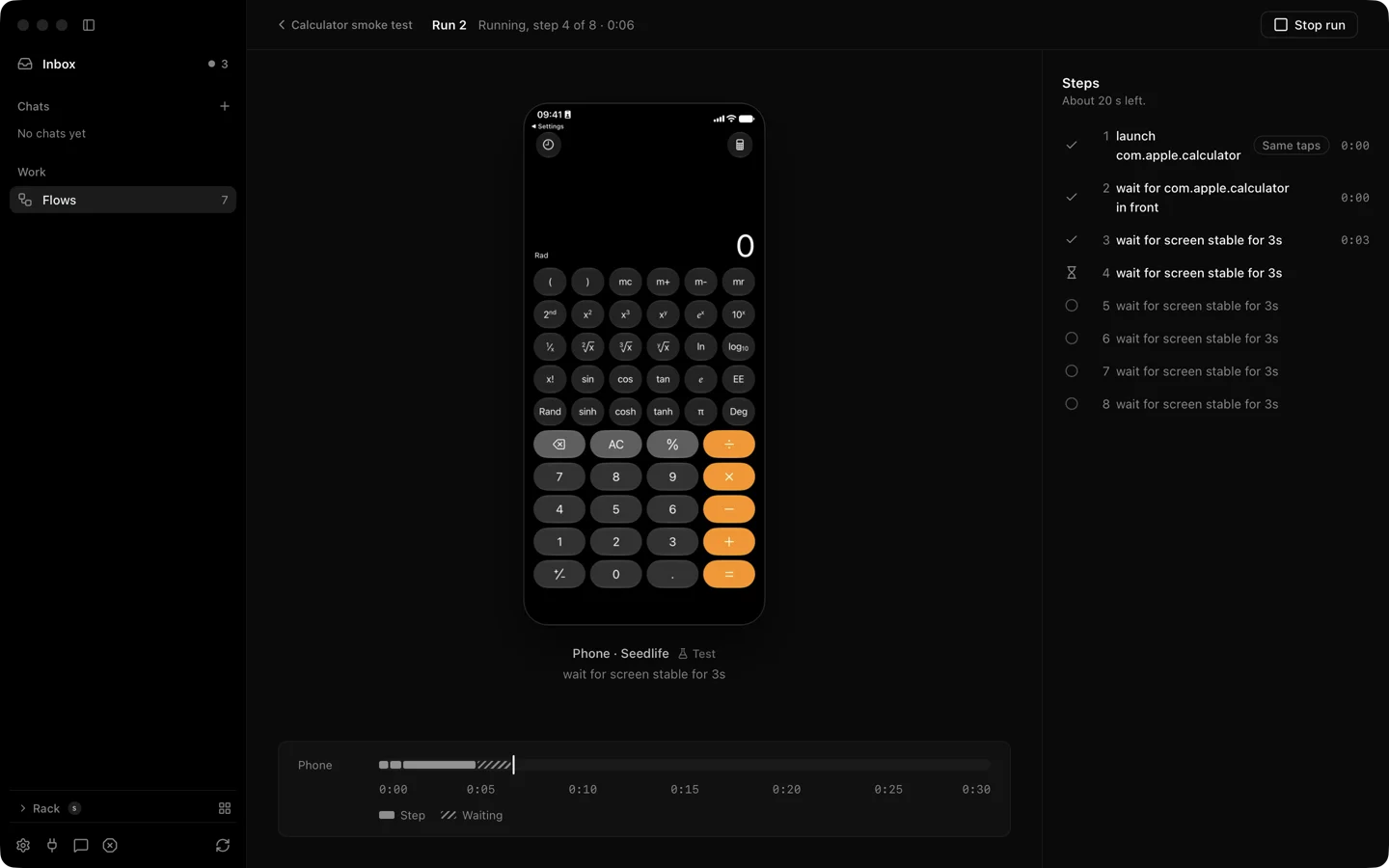
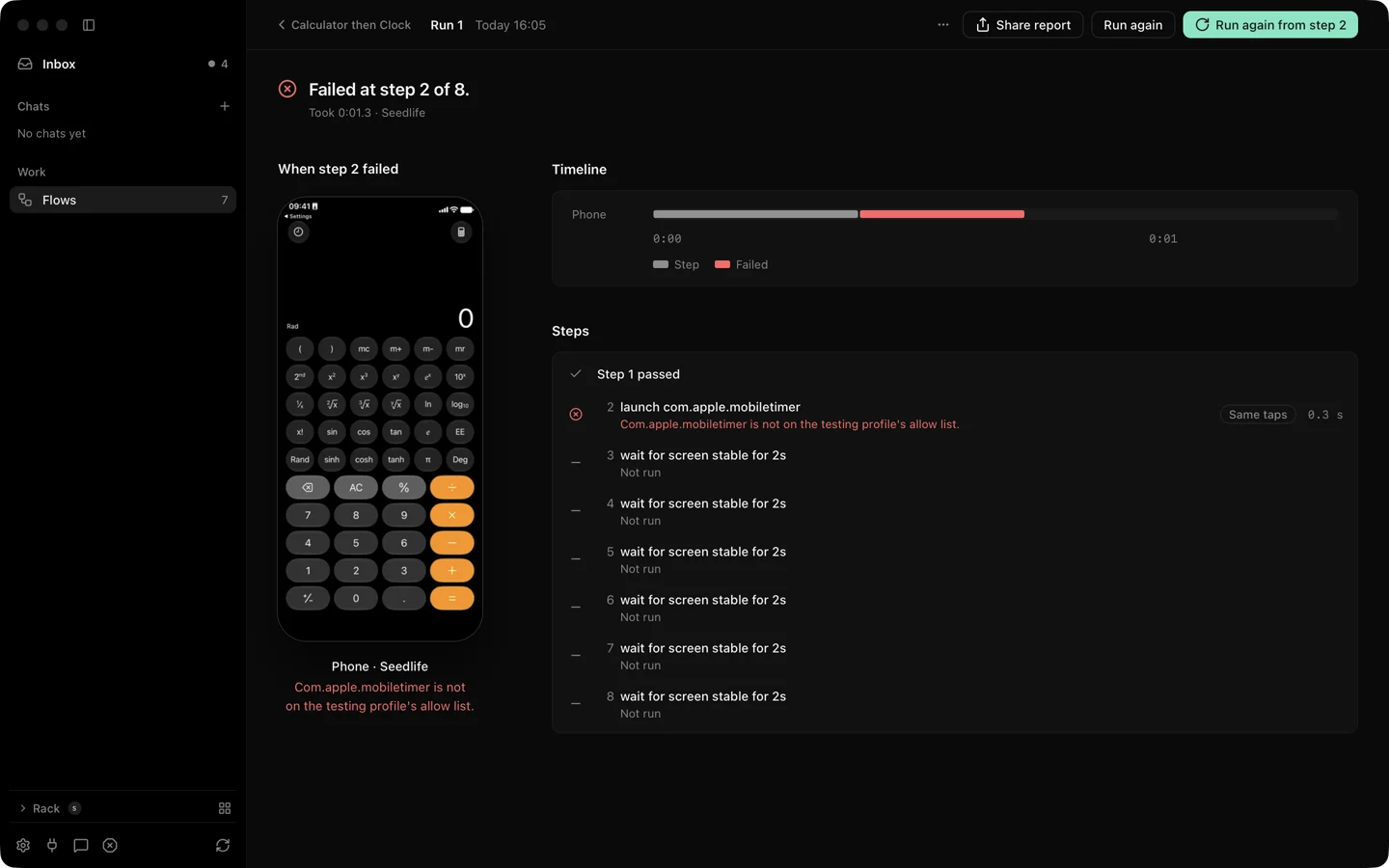
A test run is one flow on one or more phones, from start to a verdict. While it runs the app shows a plan with each step’s state and how long is left. When it ends you get a report with the verdict, the moment it failed, a timeline and a picture for every step. The same report comes out as HTML, JUnit XML and JSON for anything that reads test results.
What it does
Section titled “What it does”A run ends with one of five verdicts: passed, failed, cancelled, could not run, or interrupted when Silan stopped before the end. The live plan shows each step as waiting, running, done or failed and estimates the time left from the newest 5 runs of that flow.
The report has the verdict, the failure moment, a timeline, every step with its picture, the values the run used with secrets shown as •••, the model calls an agent step made, and run facts. A step the agent took over because the exact step no longer matched is marked healed. Steps after a failed one are marked not run.
| Button | What it does |
|---|---|
| Run again | The same flow on the same phones. |
| Run again from step N | Skips the steps before N. The new run’s report shows them as skipped. |
| Share report… | Hands the HTML report to the Mac’s share sheet. |
| Download report… | Saves one HTML file with the pictures inside it. |
| Keep this run | Keeps it past the retention window. |
| Copy run id | For the API or a bug report. |
Busy phones. A run started while its phone is in use waits in line. The app asks how long to wait, 30 minutes by default and 4 hours at most. Stop Everything holds a run where it is, and Resume lets it go on.
Retention. Settings › Privacy & Data › Finished runs keeps runs 7, 30, 90 or 365 days or with no limit. Each flow keeps at most its newest 200 runs. A kept run is never dropped. Deleting a running run is refused.
Files. Each run folder holds index.html, junit.xml, report.json, timeline.json and a media folder. The run’s ⋯ menu has Download report…, which saves the HTML report, the JUnit XML and the JSON report where you choose, and Copy run id. The run folders sit under ~/Library/Application Support/Silan/runs/<run id>/.
The silan run command is meant to run a flow from Terminal and write those files where you ask. On the current release it answers “the scenario engine is not available in this engine” (seen 4 Nov 2026), so run flows from the app for now.
Step by step
Section titled “Step by step”- Open a flow under Flows and click Run. Pick a phone for each role.
- Watch the plan. Each step turns green or red as it goes. The time left updates.
- When it ends, open the report. Click a step to see its picture.
- If a step failed, fix the flow or the app, then click Run again from step N.
- Click Download report… to keep the HTML, or Share report… to send it.
The spec has run_scenario, get_run and get_report over MCP and the same under runs over REST (run-scenario, get-report). On the current release the engine answers them with the scenario engine is not available in this engine, and silan mcp does not list them. Start runs from the app, and read the files from the run folder (below).
Limits
Section titled “Limits”- A run needs a phone with control. An iPad in the current release is refused for runs.
- The judged Done state with a real model, the words on a failed wait, an expired take-over during a run and the Share report… menu were proved in unit tests and offscreen pictures. Not yet proved on a real device.
- Silan writes its own HTML, JUnit and JSON only.