Use cases
QA on real iPhones and iPads
App testers want their flows to run on the phones people own, not only on simulators. Silan runs a saved flow on a real iPhone or iPad plugged into the Mac, shows the run live, keeps a picture of every step, and writes a report you can share. When a step fails, you fix it and run again from that step. When the phone is busy, the run waits in line. The same flows run on Xcode simulators Silan makes and on Android emulators.
A worked example
Section titled “A worked example”You test MegaMart, a shopping app. Your flow megamart-cart has six steps: open MegaMart, tap the words Search, type desk lamp, tap the first result, tap Add to cart, then a check that the cart badge reads 1.
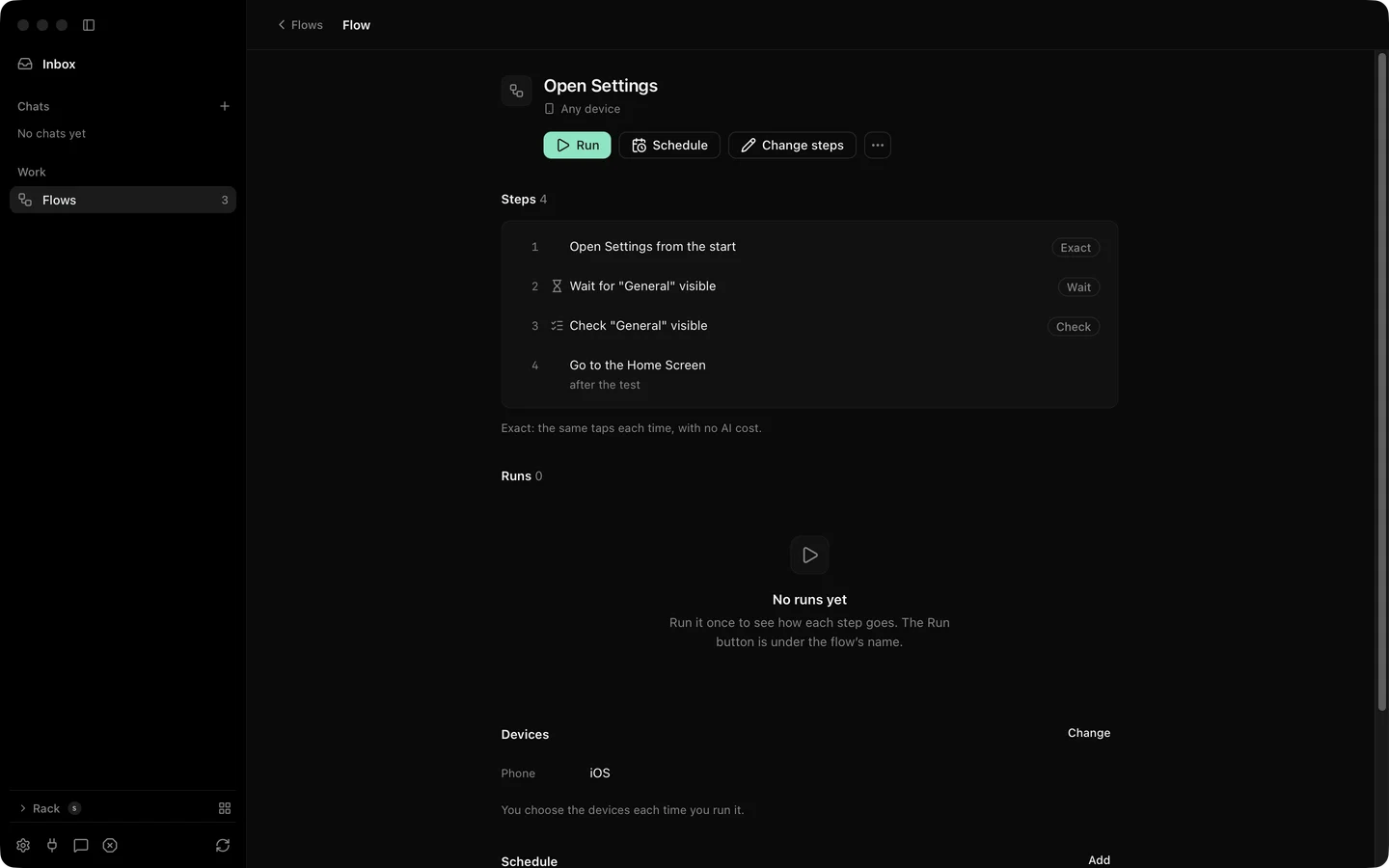
You press Run on the flow’s page and pick the iPhone. The run opens in the live view: the step list on the left ticks through, and the phone’s picture on the right shows each tap as it lands. Step 5 fails. The report’s headline says Failed at step 5 of 6, and step 5’s picture shows a sheet asking for a size that your flow did not expect. You add a step that taps Medium, save, and press Run again from step 5. The report now reads Passed: steps 5 to 7 on 1 phone, with step 1 to 4 marked as skipped, not done.
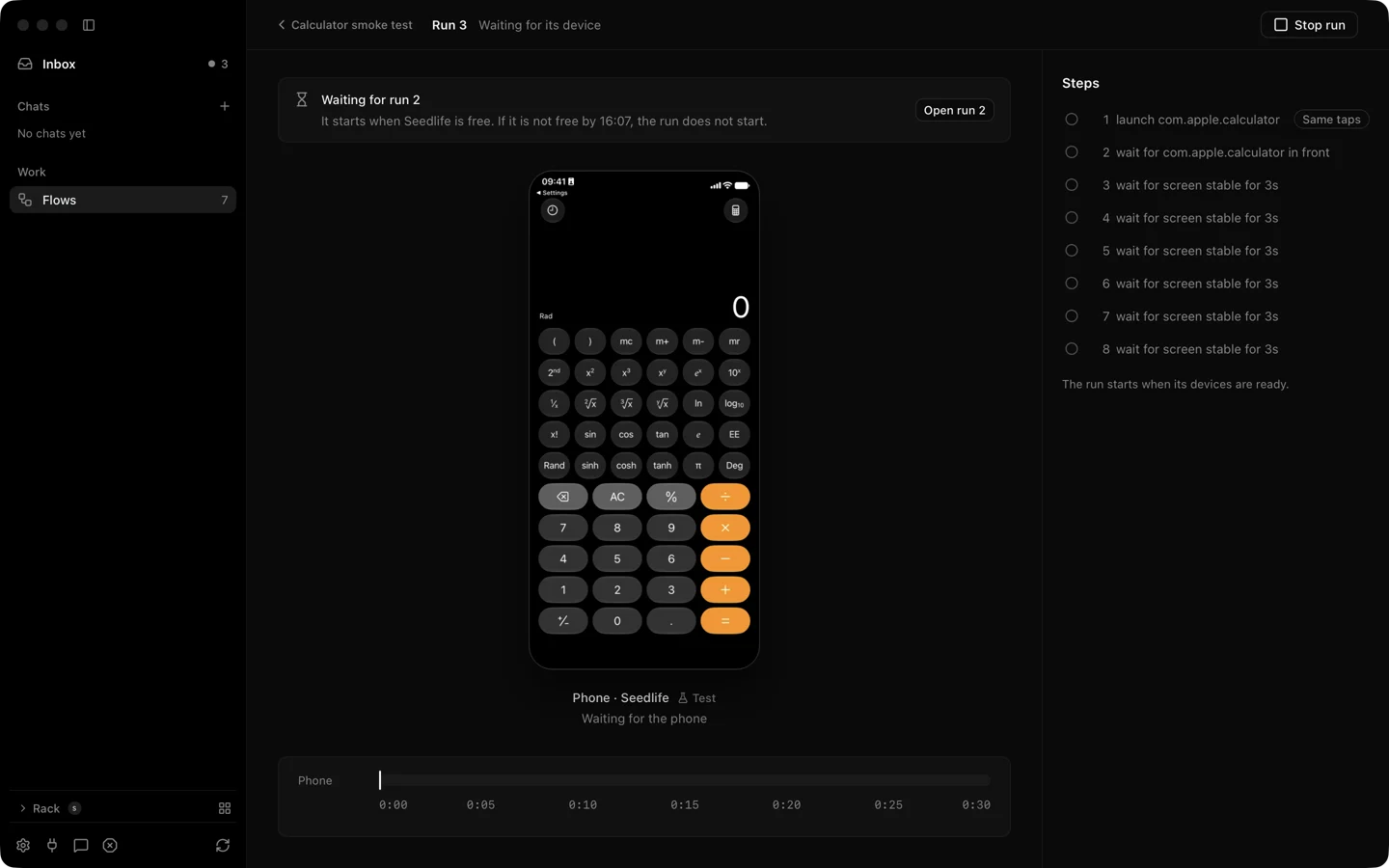
A second tester starts their flow on the same iPhone while yours is going. Their run shows Waiting for your run with its place in the line, and starts when yours ends.
- Plug the iPhone or iPad in and set it up with the Developer way for exact taps and the element list (Devices). The Simple way runs flows too, with taps through a pointer.
- Write the flow as a file, or finish a task in a chat and keep it as a flow. Each action becomes an exact step, and an agent step covers what exact steps cannot (Flows).
- Open the flow and press Run. Pick a device for each role. Set how long the run may wait for a busy phone, up to 4 hours.
- Watch the run live. Stop Everything (Control Option Command Period) holds the run where it is, and Resume lets it go on (Test runs).
- Read the report. Share or download it as one HTML file with every picture inside. The run’s folder also holds JUnit and JSON files.
- If a step failed, change it and press Run again from step N.
The spec has run_scenario, get_run and get_report (MCP tools) and a silan run command with --junit, --html and --report-json. On the current release the engine answers all of them with the scenario engine is not available in this engine (seen 4 Nov 2026), so start runs in the app and collect the files from the run folder.
What is supported today
Section titled “What is supported today”| What | Status |
|---|---|
| Flows on a real iPhone or iPad, live run view, report with a picture per step | Supported |
| Run again from a step, runs that wait for a busy phone | Supported |
| An agent step inside a flow | Supported |
| HTML report with pictures, JUnit and JSON files in each run folder | Supported |
| Screen recording of the run to an MP4 file, password fields masked | Supported |
| Clipboard read and set on a real iPhone | Supported |
| Element list and rotation on a real iPhone or iPad | Supported with the Developer way only |
| Location, text size, rotation, test pushes on Xcode simulators Silan makes | Supported |
| Install your own build on a real phone through Silan | In testing |
| Flows on an Android emulator | Supported |
| Flows on an Android phone or tablet | In testing |
| Your own existing Xcode simulators | Coming soon |
Flow runs from the silan command |
In testing (a preview) |