Features
Devices and drivers
Silan finds the iPhones, iPads, simulators and Android devices on this Mac and lists each with its name, model, system version, how it is connected and whether it is ready. Open one device to see its health checks and what, if anything, is missing before Silan can control it. For the table of what works on each kind of device, see devices. This page covers the features around the list.
What it does
Section titled “What it does”The device list. Every device appears in the sidebar and on the wall with a status word: Free, In use, Connecting, Locked, Not connected. A phone that was unplugged stays in the list with the time it left until it comes back or you remove it. Agents and the API see only devices that are present.
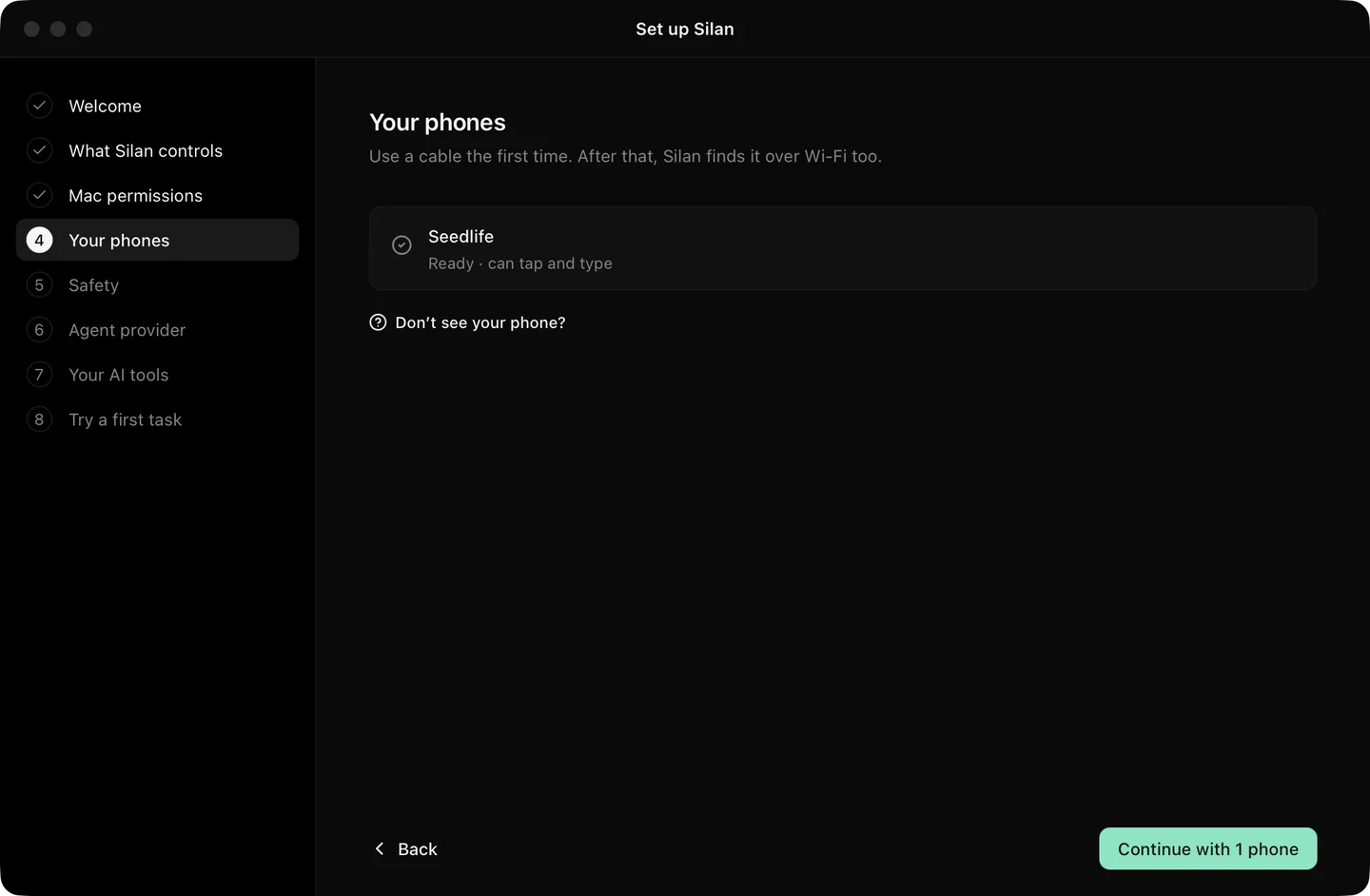
Health checks. Each device has a set of checks, each ok, a warning or failed, with a fix-it line. On an iPhone or iPad you see the cable or Wi-Fi link, the live picture (60 pictures a second over a cable), the Bluetooth pairing and link for the Simple way, and the helper for the Developer way. A resting helper is healthy: Silan opens it when it needs control.
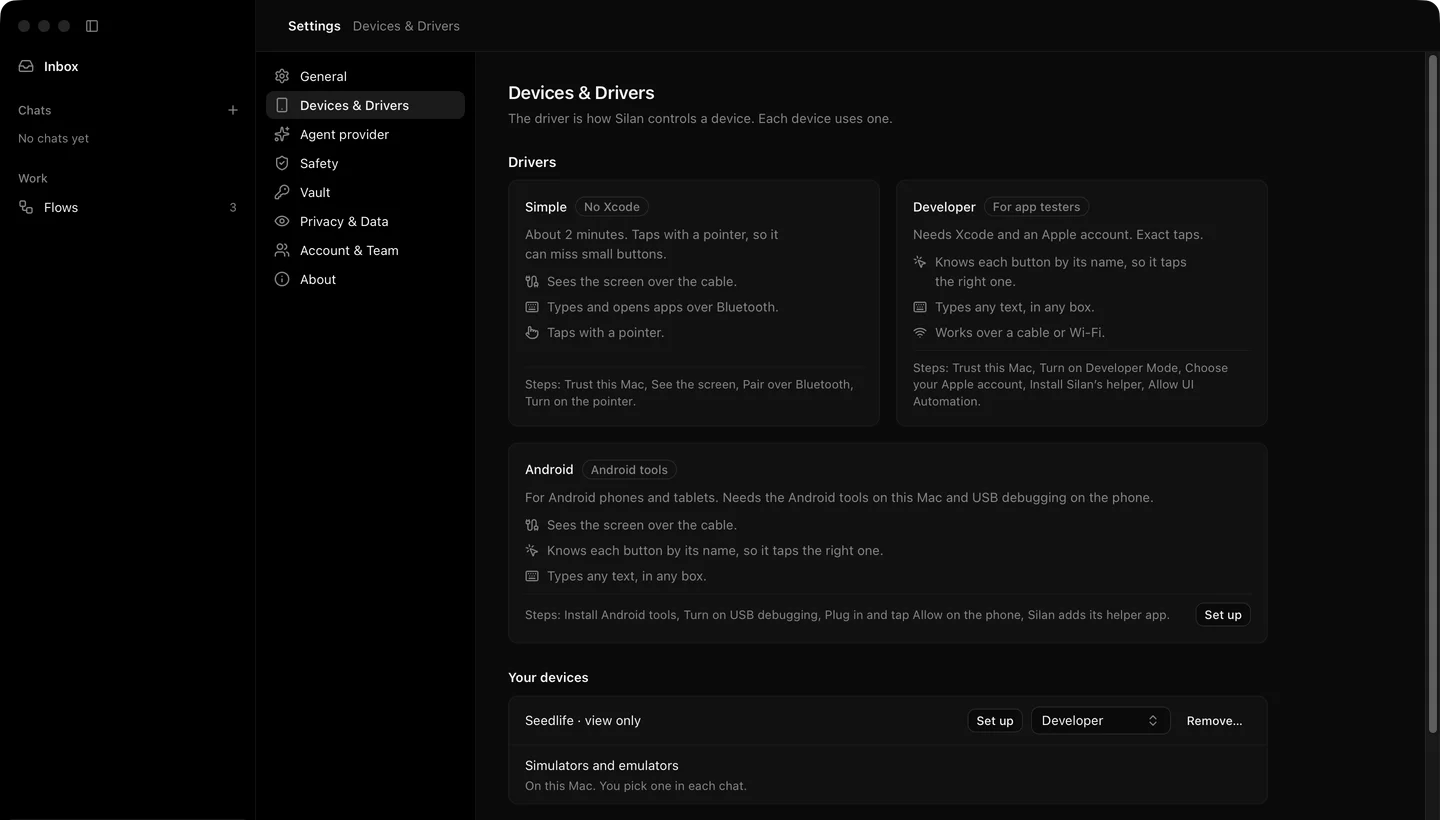
Two ways on an iPhone or iPad. The Simple way needs no Xcode. You pair the phone with the Mac over Bluetooth once, the picture arrives over the cable, and Silan acts as a keyboard and mouse. Silan turns on the phone’s pointer over the cable when the link comes up and turns it off again when it stops, if it was the one that turned it on. Swipes scroll with the mouse wheel. There is no element list on this way, so taps go by the picture. The Developer way runs Silan’s helper on the phone, signed with your Apple account through Xcode. It gives exact taps, the element list and Wi-Fi after the first cable link. Settings › Devices & Drivers shows both ways with their steps and lets you pick one per phone, or leave Silan to pick the richest that works.
Simulators. Add a device › Make a simulator makes a Silan iPhone or a Silan iPad with Xcode’s tools. It takes about 30 seconds, or about 2 minutes the first time. Silan tells you when Xcode is missing.
Remove a phone. Remove… on a device’s page makes Silan forget the phone until you add it back. It closes only Silan’s own connection and changes nothing on the phone. It is refused while someone is using the phone, and only the person at the Mac may do it. Add a device lists removed phones with Add back.
Don’t use with Silan. The same menu can set a phone aside: no picture, no sound taken, no agent. A phone Silan has never seen is held as new until you add it.
Android tools. Silan does not ship adb. It looks in Android Studio’s SDK, then Homebrew, then the PATH. When nothing is found the setup checklist and Settings › Devices & Drivers show the install line:
brew install android-platform-toolsStep by step
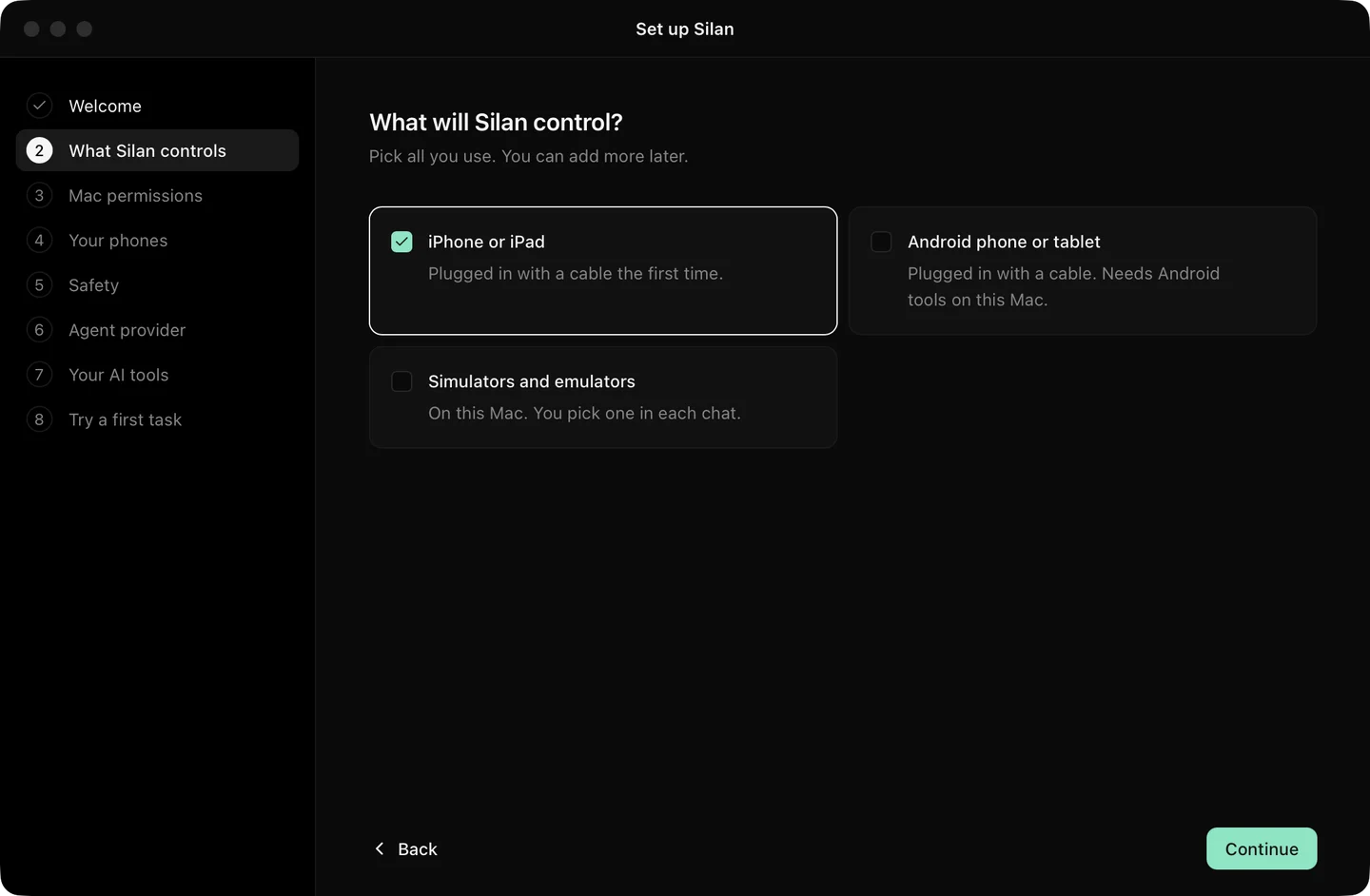
Section titled “Step by step”- Plug the phone in with its cable. It appears in Add a device as new. Click Add.
- Open its page and read the Info tab. Each health check says what is fine and what to fix.
- For the Simple way, click Add a Bluetooth pairing and follow the steps on the phone. A phone already paired with the Mac is adopted with no steps.
- For the Developer way, pick your Apple team when Silan asks and let it build the helper. Later the phone works over Wi-Fi too.
- To make a simulator, click Add a device › Make a simulator and pick iPhone or iPad.
From an agent, list_devices and get_device return the same list and the health checks. Removing a phone, choosing a driver, picking a signing team and starting the Android tools are refused for agents with FORBIDDEN. See list-devices and the devices REST group.
Limits
Section titled “Limits”- Android emulators are supported. Android phones are in testing: the four-step Android checklist beyond installing the tools is not yet proved on a real Android phone.
- Picking a real Apple team was never driven in a test. Only the refusal of an unknown team is proved.
- Unplugging and replugging an iPhone to watch it go to Not connected and back is proved on an iPad Air, and owed on an iPhone.
- The Simple way has no element list, so the Elements tab is empty and finds work on the picture’s text.