Guides
Share a phone with a teammate
A team phone stays on your desk and on your Mac. A teammate books it from their own Mac through your team’s relay, sees its picture, and drives it, while asks still come to you. This guide walks both sides.
The relay is private: each team runs its own. If your team has none yet, start with Run your own relay in 30 minutes or the self-hosting page.
Time: about 15 minutes.
You need:
- A team server address, such as
relay.example.com. - Two people, each with Silan on a Mac and an account on the team’s sign-in.
- One phone set up on the owner’s Mac.
On the owner’s Mac:
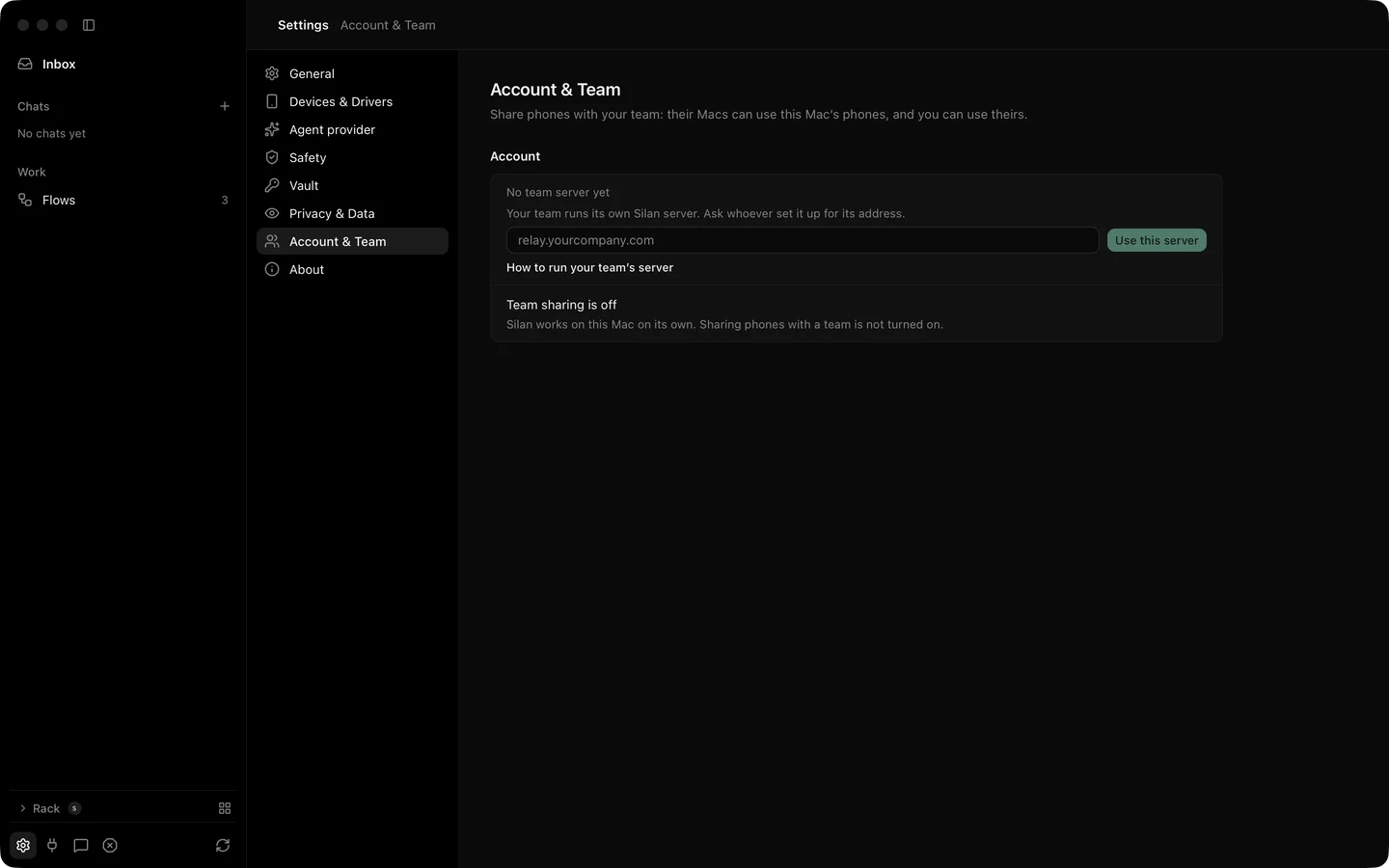
- Open Settings › Account & Team. Under No team server yet, type the server address and click Use this server.
- Click Sign in. Your browser opens the team’s sign-in page. Sign in and come back to Silan. The page now reads Server: relay.example.com with a Change… link, and your name.
- Make or join the team. If a teammate sent you an invite link, open it: the server address and the team fill in by themselves.
- Click the phone in the sidebar, then Info in the device column. Under Who may use it, tick Share with your team. Set People at once to 1 unless the phone should take more than one teammate.
On the teammate’s Mac:
- Open Settings › Account & Team, use the same server and sign in. Join the team from the invite link.
- Look at the sidebar. The owner’s phone shows under the team with a row such as
Owner's MacBook · Free · 1 seat. Click Use. - Watch the notice:
is yours. Start within 2 minutes. The phone’s page opens with its live picture through the relay. Tap and type as if it sat on your desk. - Give it back when you are done with Hand back. Silan returns the phone to its Home screen when the next person is someone else.
Back on the owner’s Mac:
- Watch Activity while the teammate works. Each step is listed with the teammate’s name and Mac, such as “Kai, from Kai’s MacBook”. If the teammate’s agent needs an answer to a risky step, the ask comes to your Inbox.
- Take the phone back when you need it. Open the phone’s page and click Take back. Give a reason, which the teammate sees. The teammate gets two minutes of grace, then the phone is yours again.
Waiting in line: when the phone is in use, the row reads In use by <name> · N waiting. Join the queue puts you in line, Leave the line takes you out, and Ask to hand over sends the current user a nudge. After 15 minutes of no touches Silan asks the user Still using
If something goes wrong
Section titled “If something goes wrong”- The teammate sees no team phones. Both Macs must point at the same server and both people must be in the same team. Check Settings › Account & Team on each.
- The picture is slow. The relay adds about 26 ms to each frame and gives about 28 frames a second. Slower than that points at the network between the Macs and the relay.
- The phone went to the Home screen. That is on purpose. Silan clears the screen when the phone changes hands between two different people.
- A booking lapsed. The two-minute start window passed. Click Use again.